Help

Learn how to use Victoris.

Everything you can do on Victoris, step by step and with screenshots. Search for what you need or pick a topic.

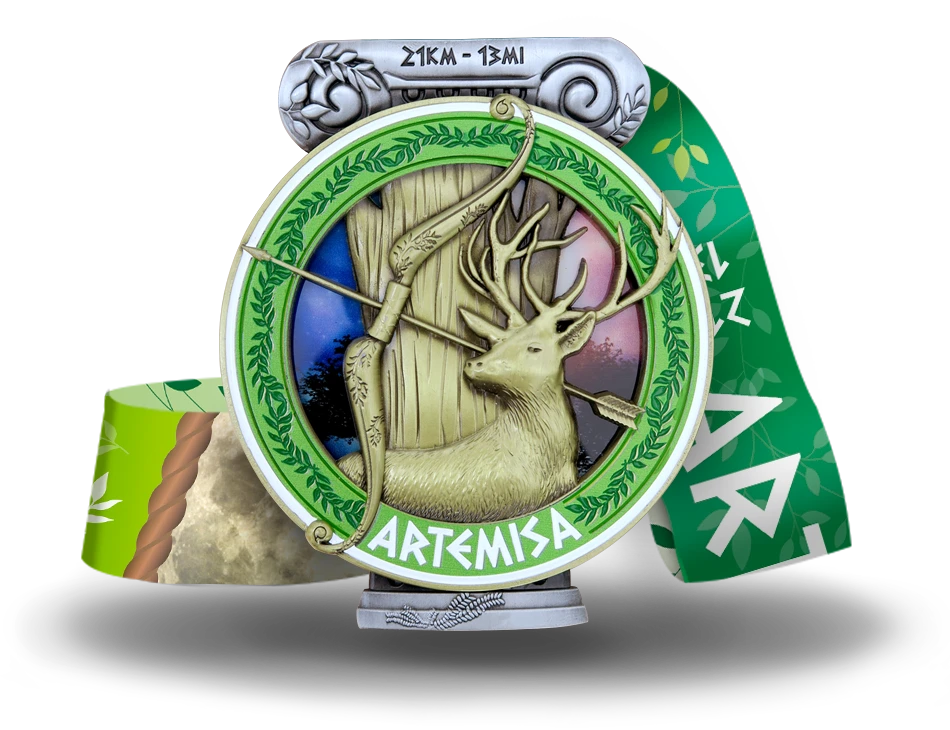
Medal from a Victoris challenge

Start here

First steps

Your account, the app and how everything works.

Victoris is a virtual race: there's no start line and no fixed day. You decide where, when and how you move, and every kilometre you cover counts towards your challenge.

Walking, running, cycling, swimming, skating… all count. And you can take as long as you need.

  1. Create your account. It's free and takes a minute, with your email or with Google or Facebook.

    How to create your account
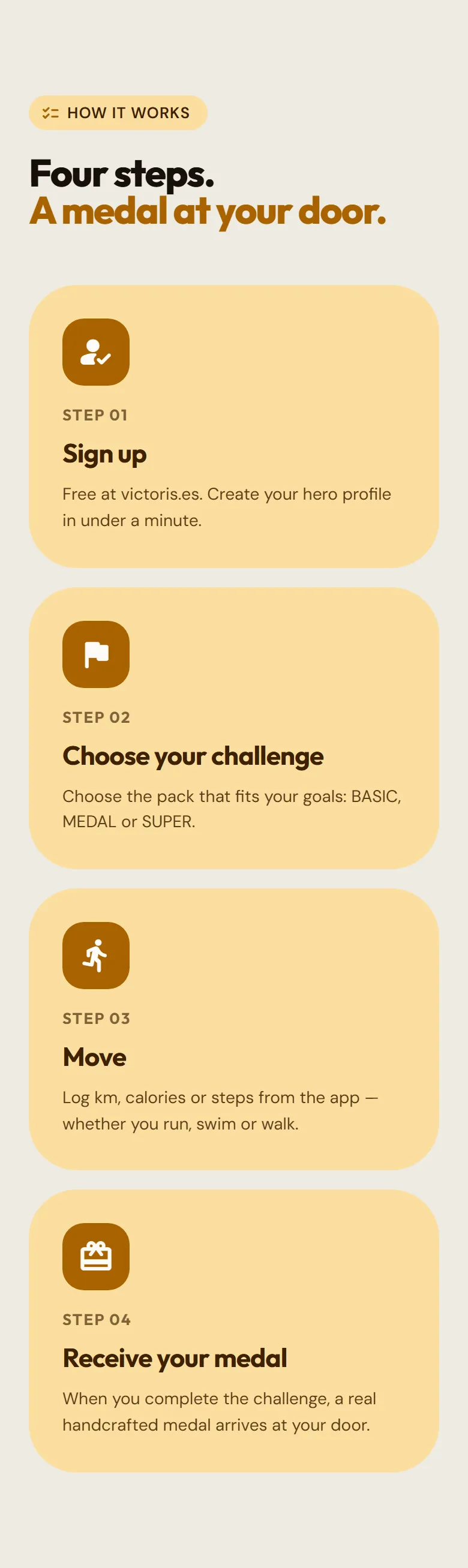
    The four Victoris steps on the home page: sign up, pick your challenge, get moving and receive your medal.
  2. Pick your challenge. Each challenge has a distance and its own medal. Some are short, to do in one go, and some are long, to build up bit by bit.

    See the challenges
  3. Get moving and log your kilometres. From your personal area, with the Record progress button. You can type them in by hand or upload the GPX file from your watch or from apps like Strava or Garmin.

  4. Reach the finish line and claim your medal. When you complete the distance, you confirm your address and we send it to your home. You also get your bib and your certificate.

Tip:On top of your challenges, all your kilometres count towards the Endless Challenge, which is free and never ends. Along the way you earn stickers and collectible coins.

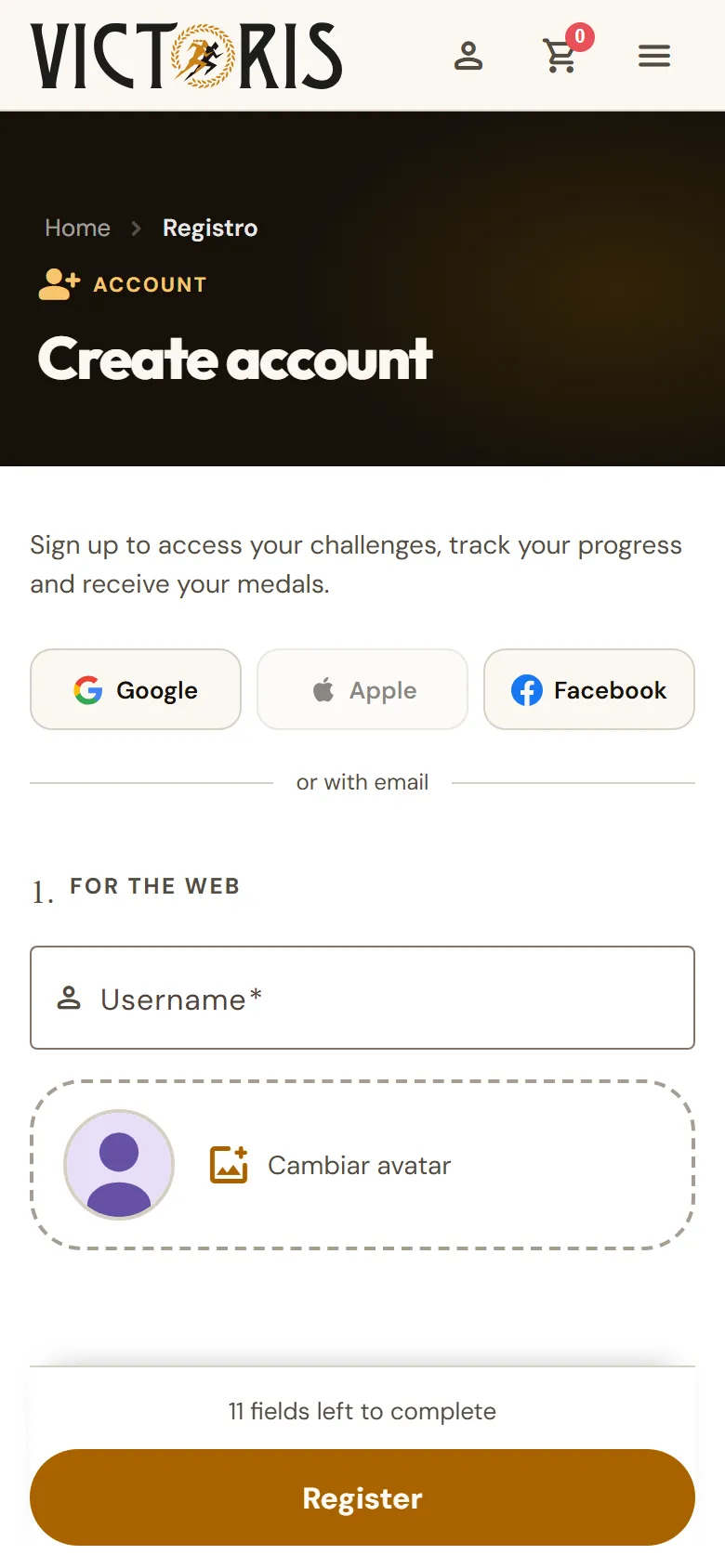
  1. Open the menu and tap Register. If you have a Google or Facebook account, tap its button and your account will be ready in a moment.

    «Create account» page with the Google and Facebook buttons at the top.
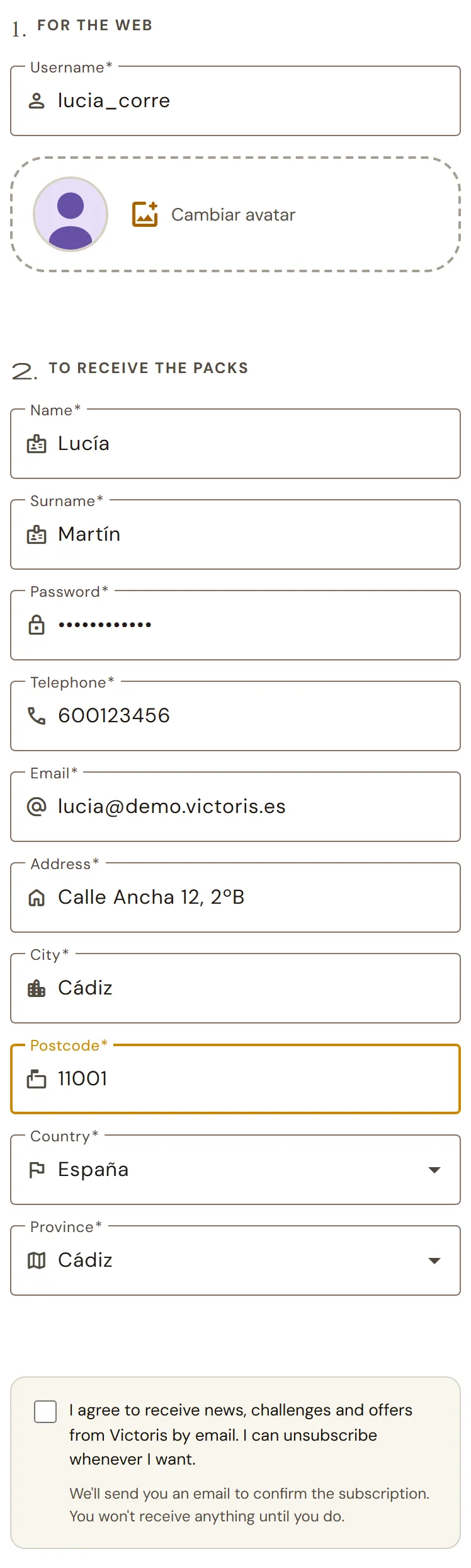
  2. If you'd rather use your email, fill in the form. Under 1. For the web you choose your username and your photo: it's what other people will see on the leaderboards. Under 2. To receive the packs you enter your details and your address, which is where your medal will be sent.

    Registration form with the sections «For the web» and «To receive the packs».
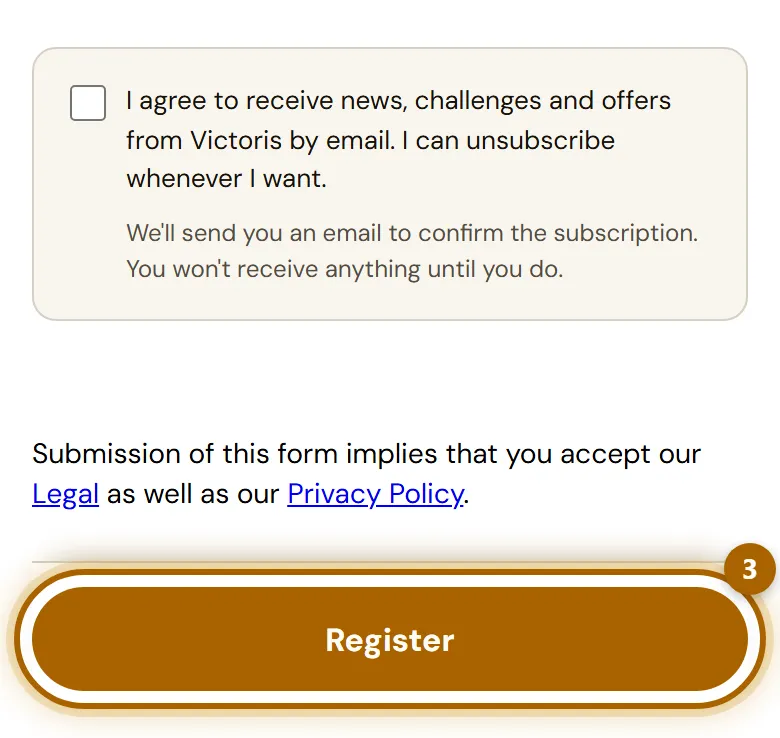
  3. At the bottom you'll see a box to receive our news by email. It's optional: tick it only if you want to. Then tap Register.

    End of the form with the newsletter box and the «Register» button highlighted.
  4. If anything is missing, the page tells you what. When everything is fine, you go straight to your personal area and a welcome email lands in your inbox.

Tip:If a friend sent you their invitation link, sign up from that link: you'll see at the top who invited you, and you'll each get a €5 discount.

Careful:Your password needs at least 8 characters. And if your email is already registered, don't create another account: log in with the one you have or recover your password.

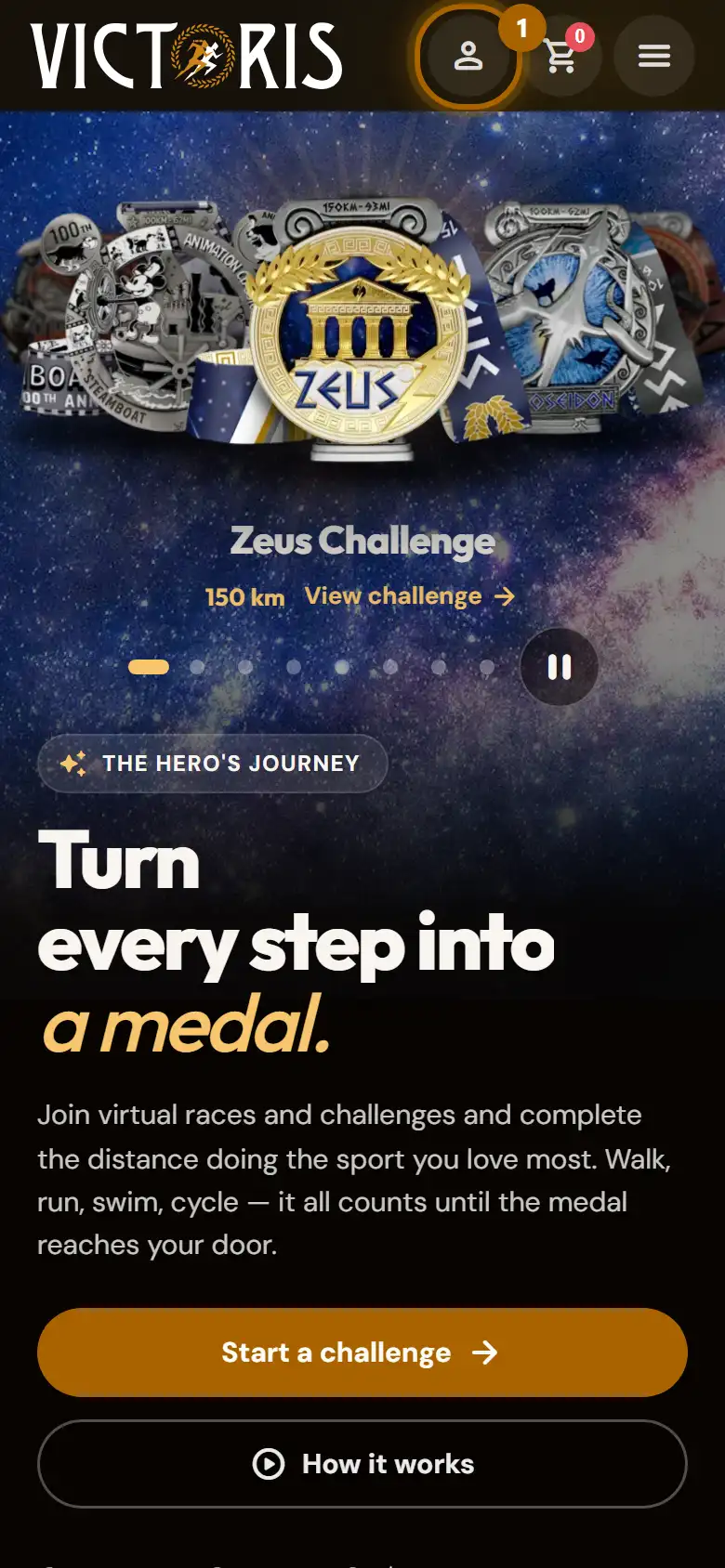
  1. On your phone, tap the person icon at the top right. On a computer, use the Log in button.

    Top bar on a phone with the log-in icon highlighted.
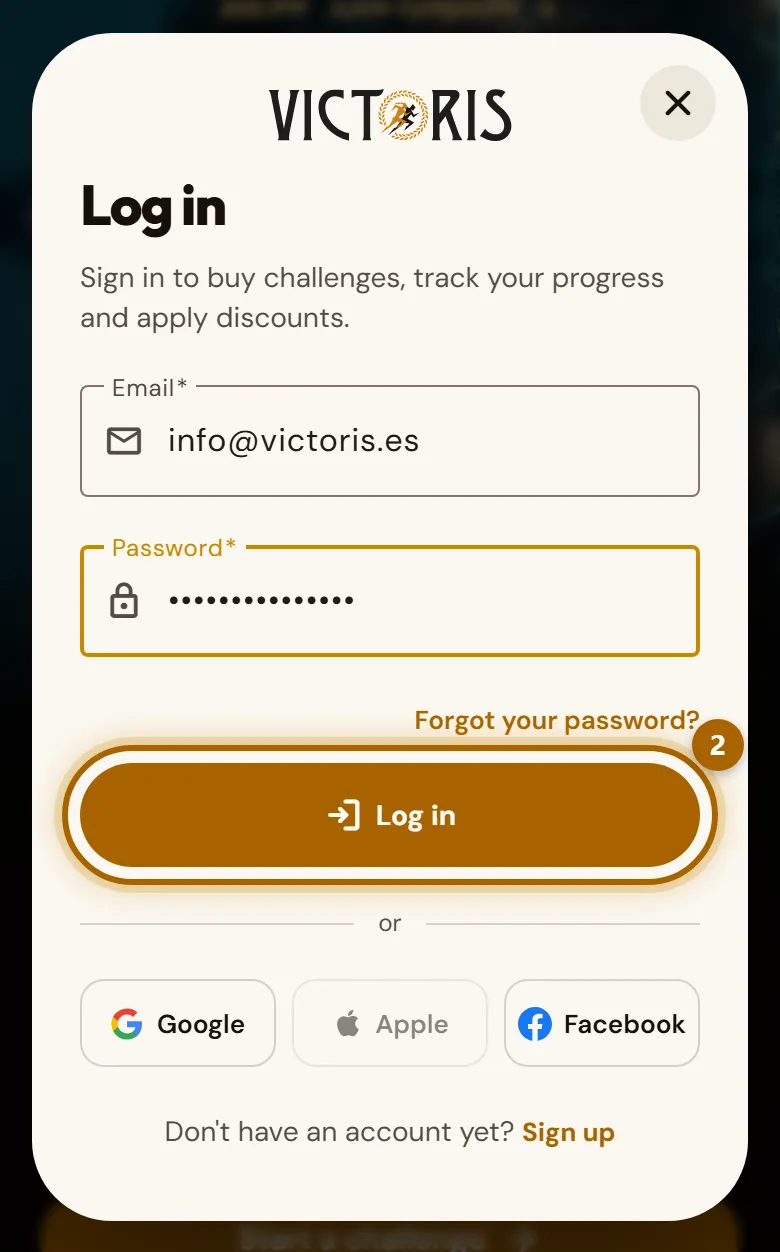
  2. Type your email and password and tap Log in. If you registered with Google or Facebook, tap that button instead of typing a password.

    «Sign in» window with the email and password filled in and the «Log in» button highlighted.
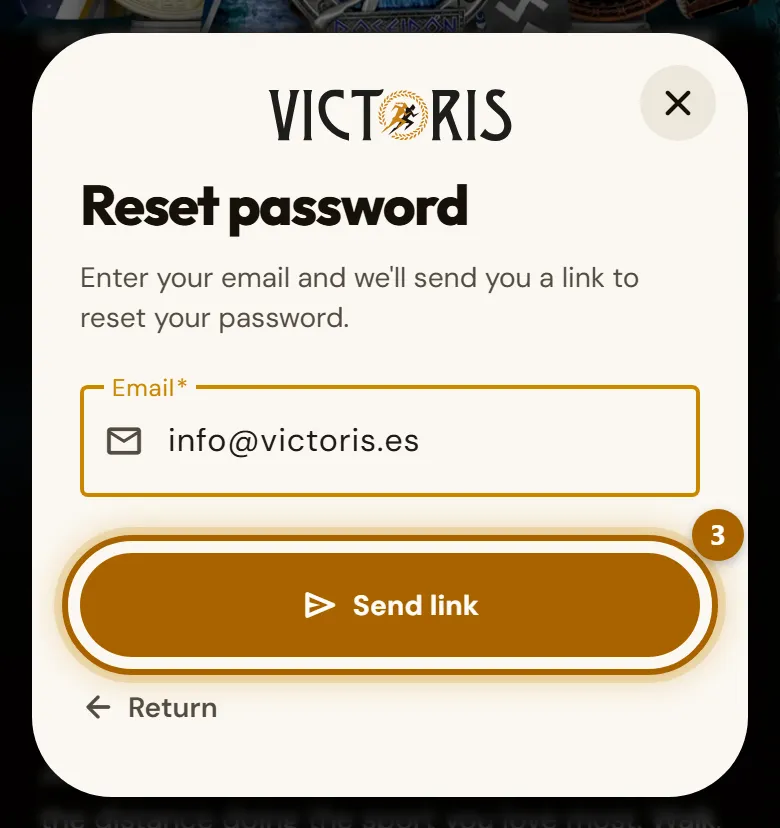
  3. Can't remember your password? In the same window tap Forgot your password?, type your email and tap Send link. You'll get an email with a link to set a new one.

    «Recover password» window with the «Send link» button highlighted.
  4. Open the link in the email, type your new password twice and tap Set new password. Now you can log in with it.

  5. To log out, open the menu and tap Exit. If you don't, Victoris remembers you on that device and you won't need to type your password again.

Tip:If the password recovery email doesn't arrive within a few minutes, check your spam or promotions folder.

Careful:The link to change your password expires. If it says the link isn't valid, ask for a new one.

Victoris works in the browser on any phone or computer, with nothing to install. But if you put it on your home screen, you'll open it with one tap, like any other app.

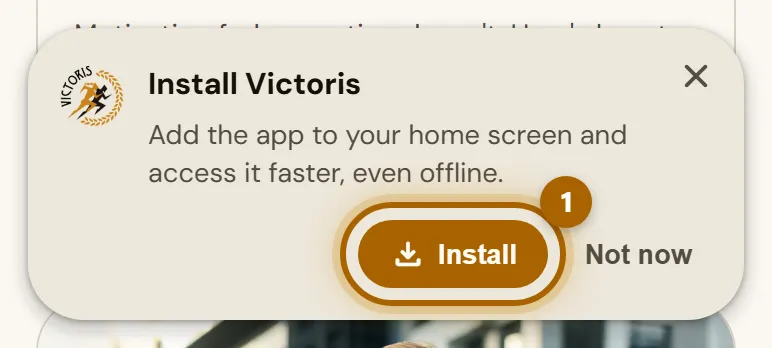
  1. On Android: look for Victoris on Google Play and install it. You can also do it from the website: if you see the Install Victoris banner, tap Install.

    «Install Victoris» banner with the «Install» button highlighted.
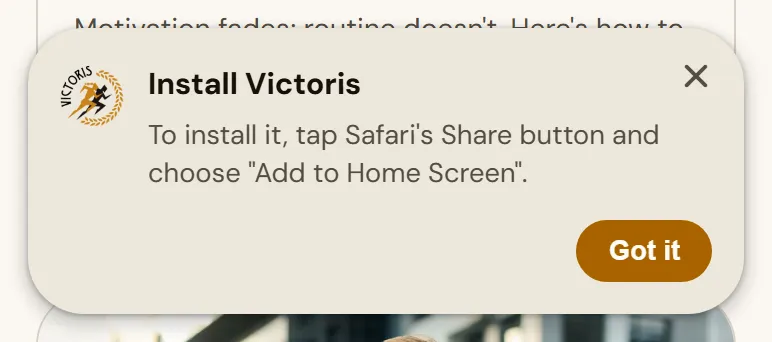
  2. On iPhone or iPad: open victoris.es with Safari (it can't be done with any other browser). Tap the share button, the square with an arrow pointing up, and choose Add to Home Screen.

    Instructions for installing Victoris on iPhone from Safari.
  3. You'll see the Victoris icon next to your other apps. Open it from there and log in once: after that it will remember you.

Tip:With the app installed, the icon shows a little number with the challenges you have under way. And on Android you can send a GPX to Victoris from other apps with Share.

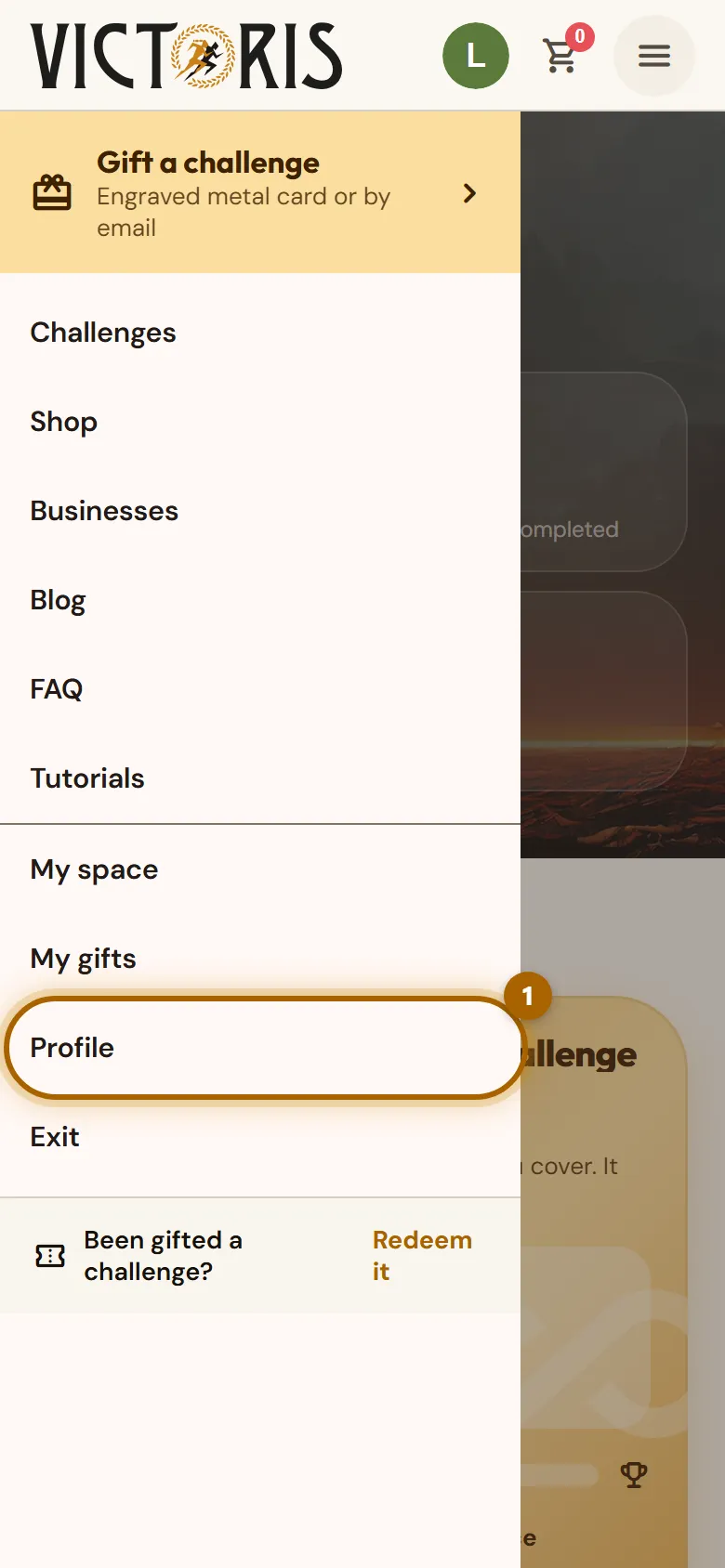
  1. Once you're logged in, open the menu and tap Profile.

    Open menu with the «Profile» option highlighted.
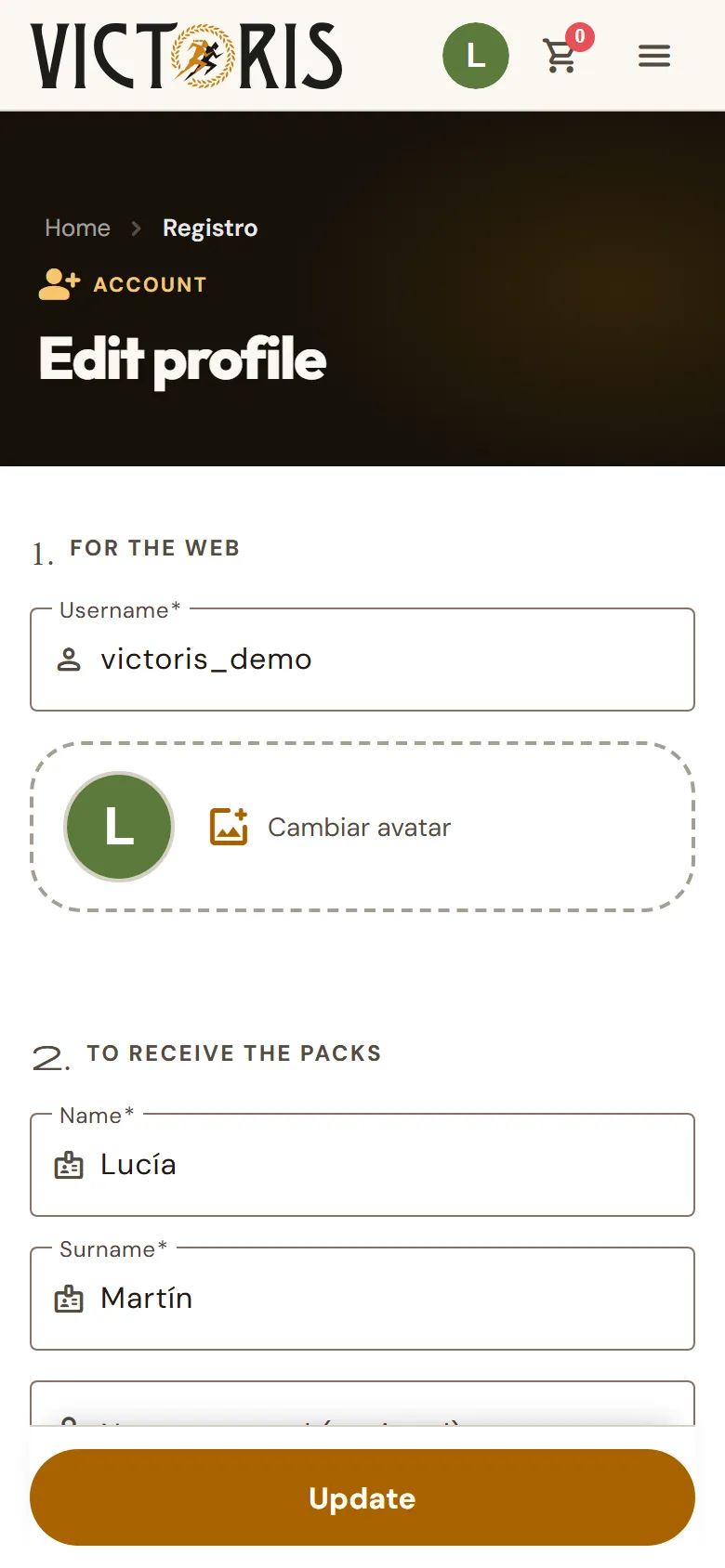
  2. You'll see your details on the Edit profile page. Change whatever you need: your photo, your username, your phone number or your address.

    «Edit profile» page with the user's details.
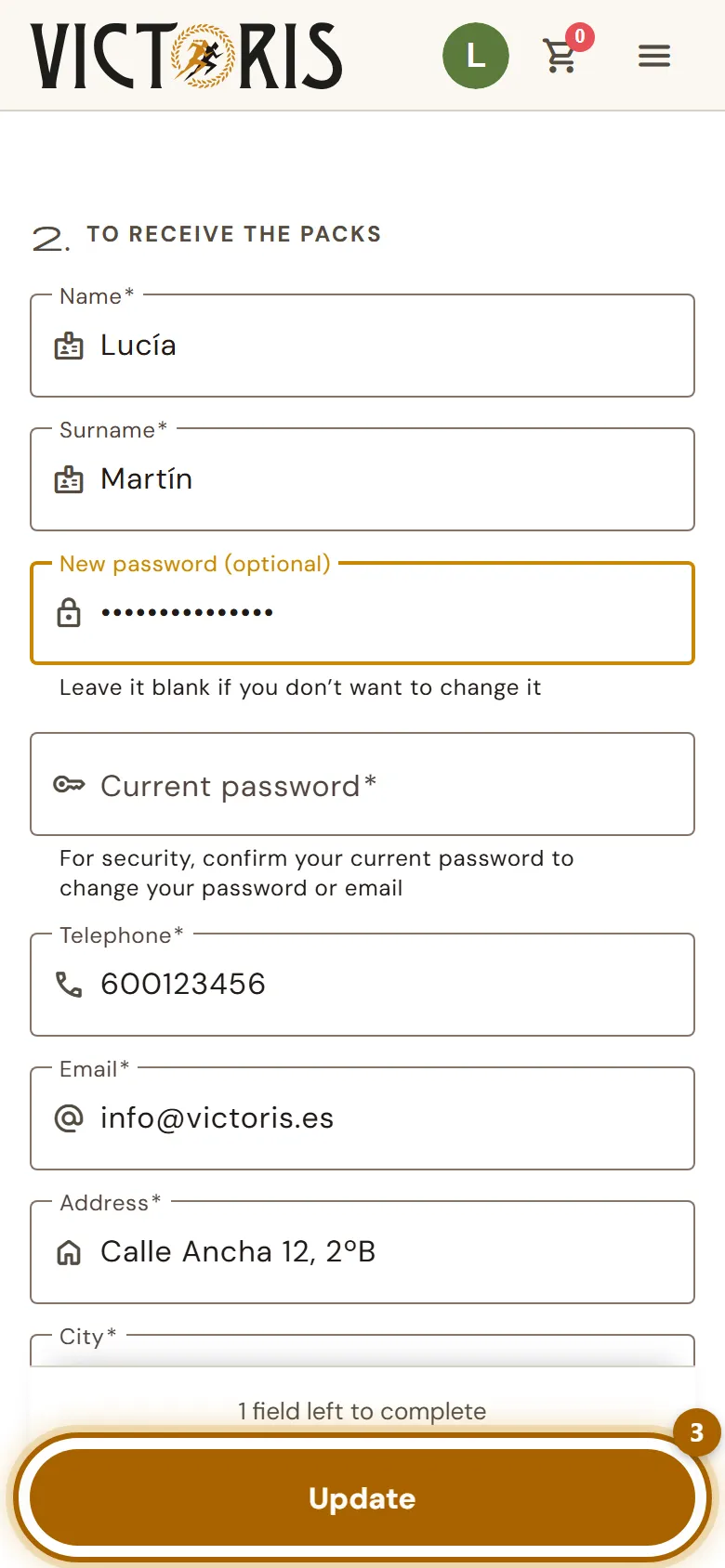
  3. If you want to change your password, type the new one in New password (optional). If not, leave it blank. To change your password or email we'll also ask for your Current password.

    Password fields on the profile page and the «Update» button highlighted.
  4. Tap Update. You'll see the message Your details have been saved successfully.

Careful:Changing your address here doesn't change the address of a medal you've already claimed. If you've just moved and have already claimed it, write to us as soon as possible at info@victoris.es.

Join a challenge

Choose, buy, redeem and set yourself a goal.

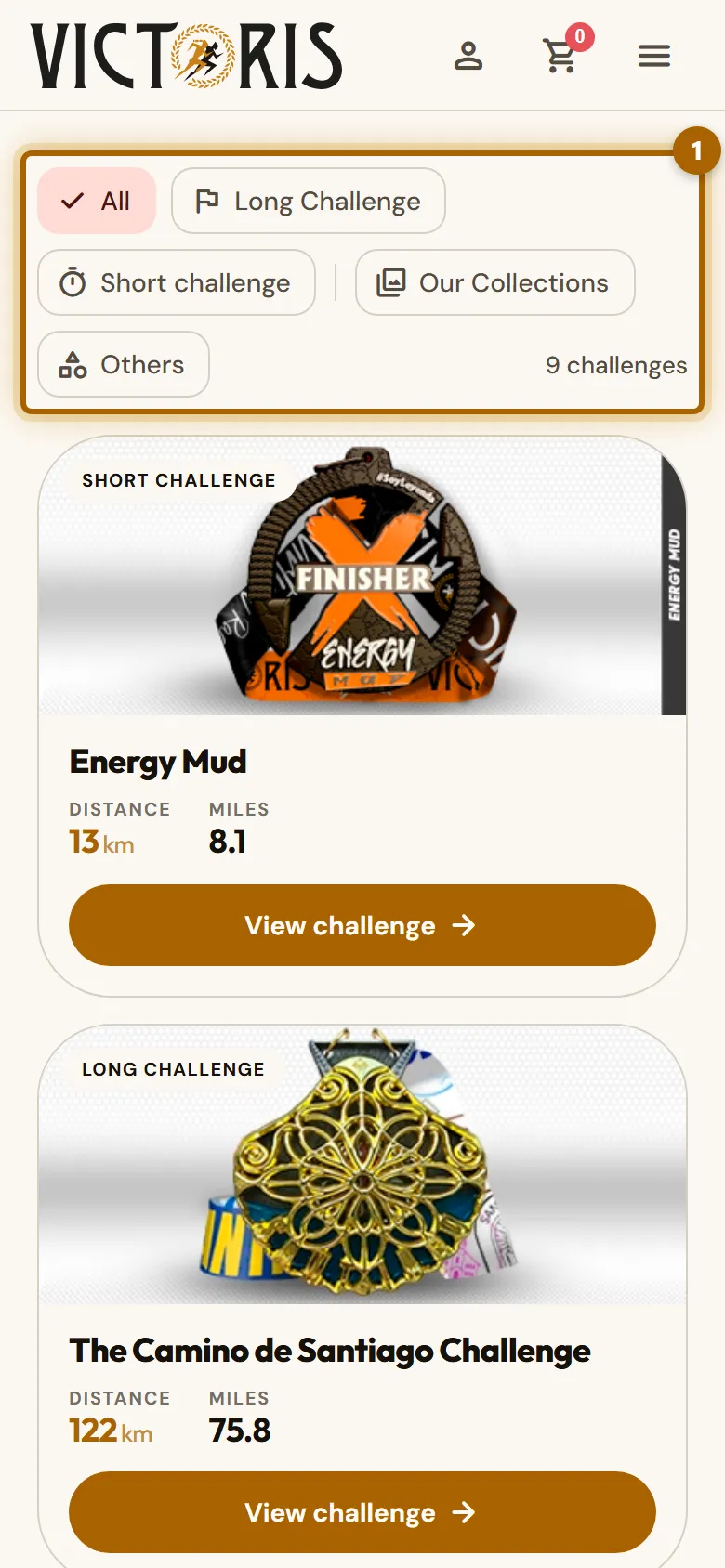
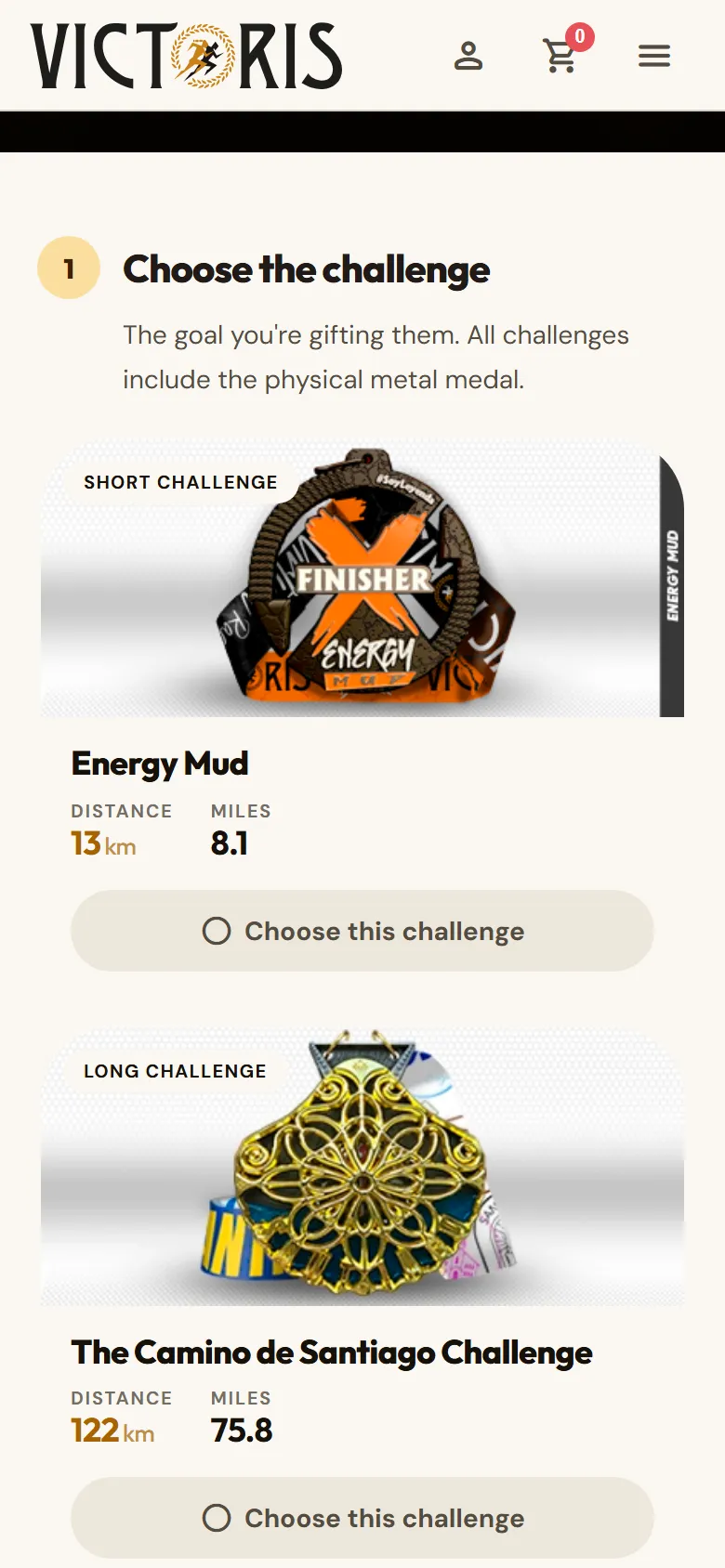
  1. Tap Challenges in the menu. At the top you have filters to see only long challenges, short ones or collections.

    List of challenges with the filters highlighted.
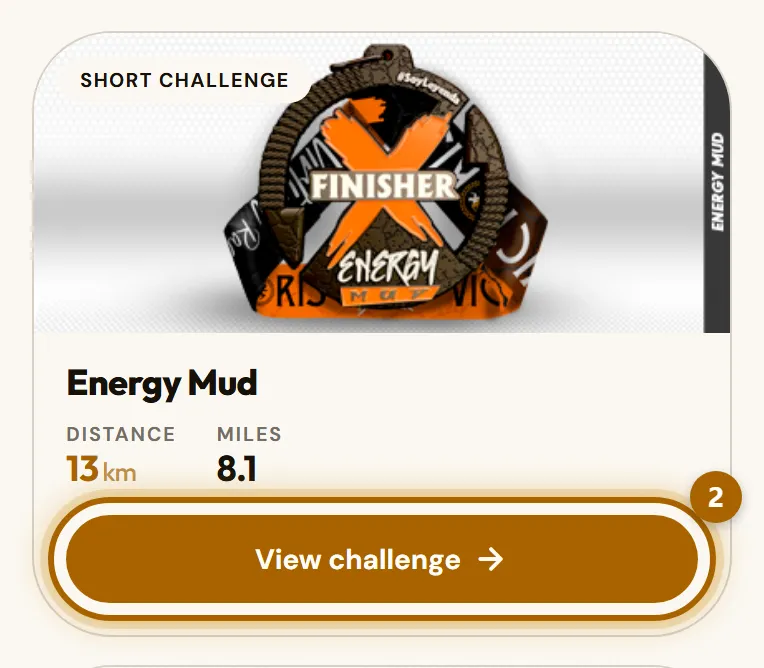
  2. Tap View challenge on the one you like. On its page you'll see the distance, the front and back of the medal, its measurements and the packs available.

    A challenge card with the «View challenge» button highlighted.
Long challenge
A big distance, like the 122 km of the Camino de Santiago, that you complete bit by bit. Every activity you log counts, and you can take as long as you like.
Short challenge
A distance you can cover in one go, like a real race.
Open mode (Open)
This is the normal mode: you can log your kilometres by hand or with a GPX file, and there is no leaderboard.
Competitive mode
You join the challenge leaderboard. In return, only activities with a GPX file are accepted, because that's how your time is checked. You choose it when you buy, in the Shop, by switching on Competitive.

Tip:Is it your first challenge, or are you going to walk? Pick a long challenge in open mode: it's the simplest, and you can log your kilometres by hand.

When you choose a challenge, you also choose a pack. All of them include your registration, tracking in the app, your bib and your certificate.

You can see what each pack includes and costs on each challenge's page. This is the usual line-up:

  • Basic: no medal. It's offered by challenges with free entry, and you can add the medal whenever you want.
  • Medal: adds the challenge medal, which we send to your home when you finish. It's the most popular.
  • Super: like Medal, plus the Honeycomb wooden medal display to hang your medals on.
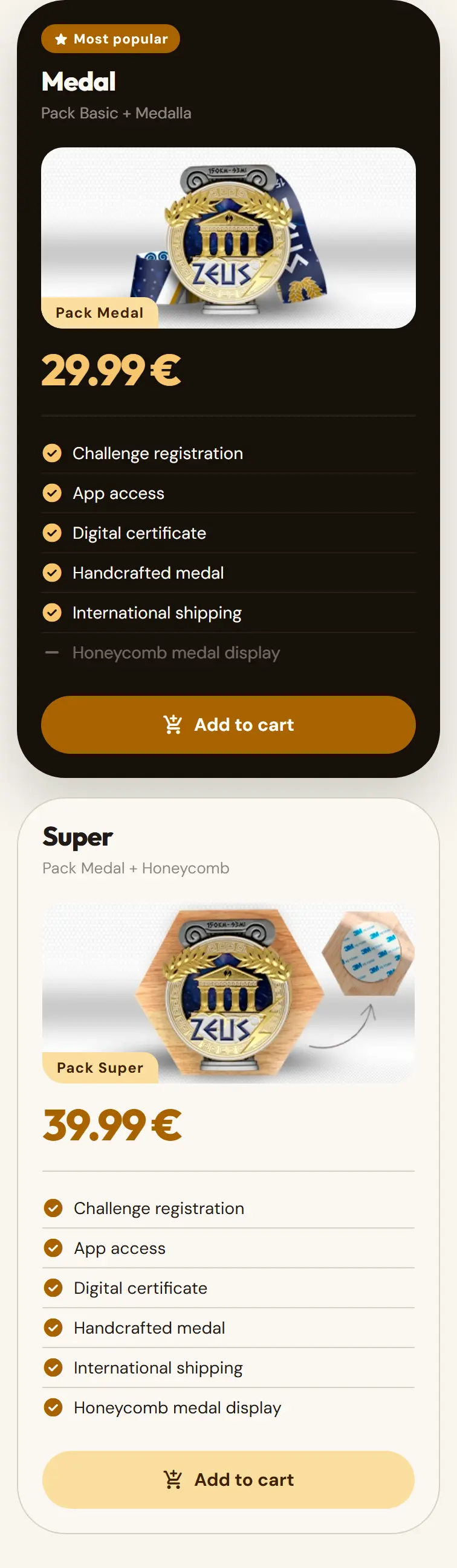
  1. On each challenge page, scroll down to Choose your pack to see the packs with their prices.

    Pack cards for a challenge with their prices.
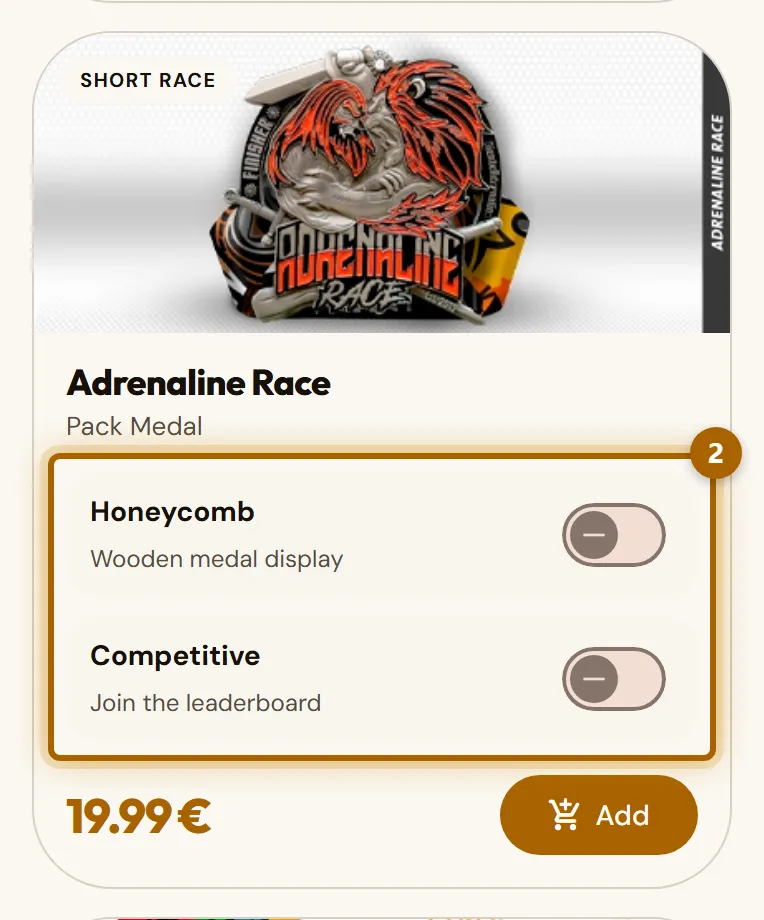
  2. In the Shop, every challenge comes with the Medal pack. The first switch (Medal or Honeycomb, depending on the challenge) changes it to the Super pack, with the medal display. The second one, Competitive, puts you on the leaderboard.

    Challenge card in the shop with the «Medal» and «Competitive» switches highlighted.

Careful:Shipping for the medal is paid separately. You'll see the amount in your basket before you pay.

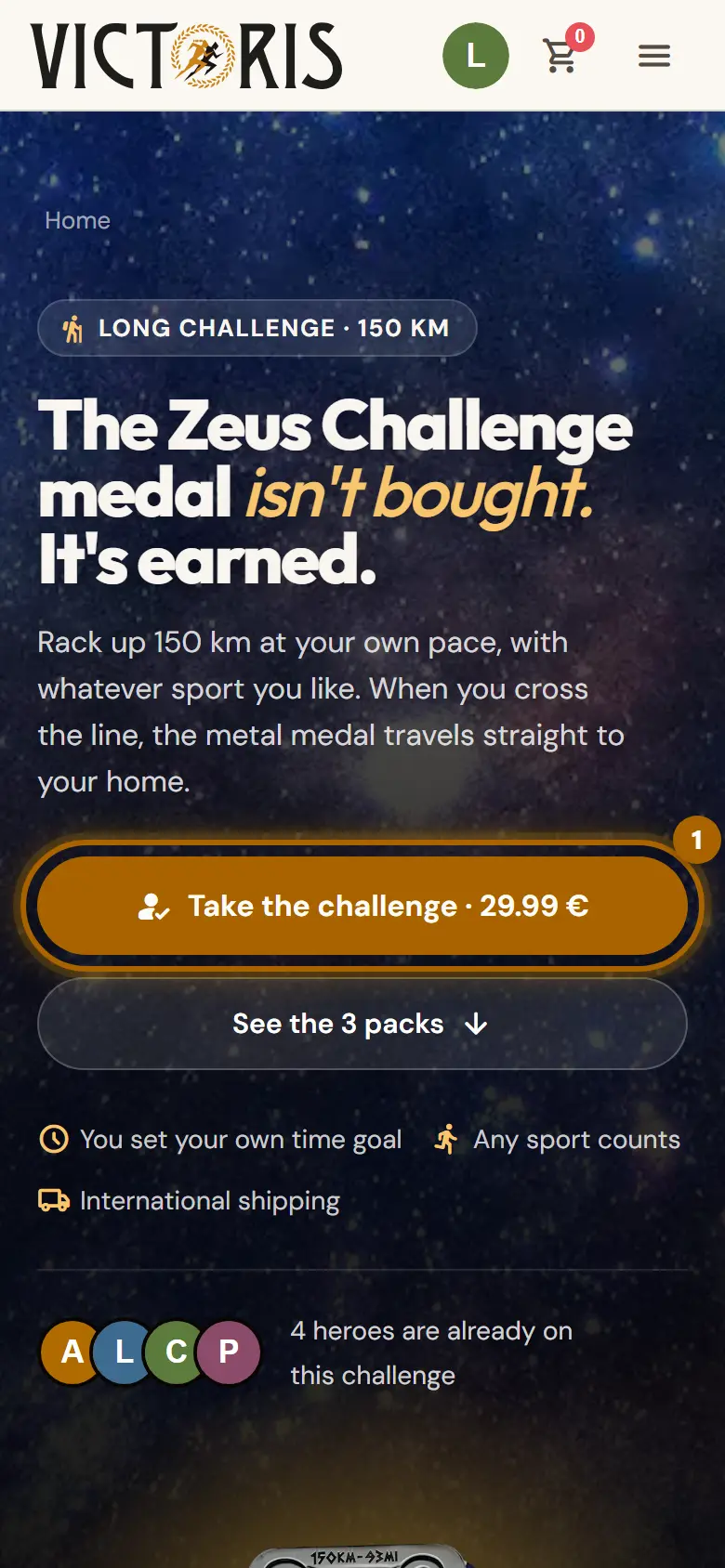
  1. On the challenge page, tap Take the challenge. The challenge goes into your basket with the Medal pack. If you want a different pack, add it from Choose your pack.

    Challenge page with the «Take the challenge» button highlighted.
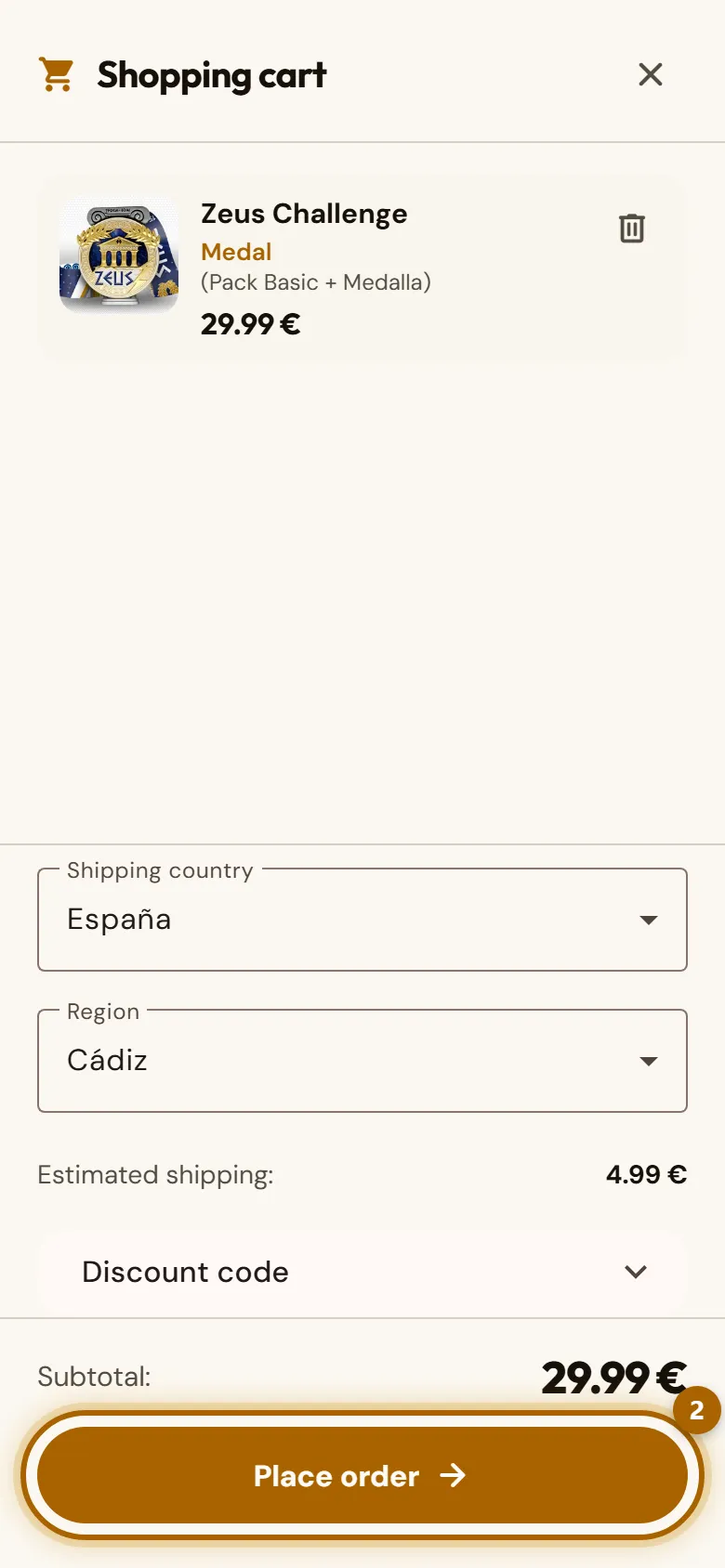
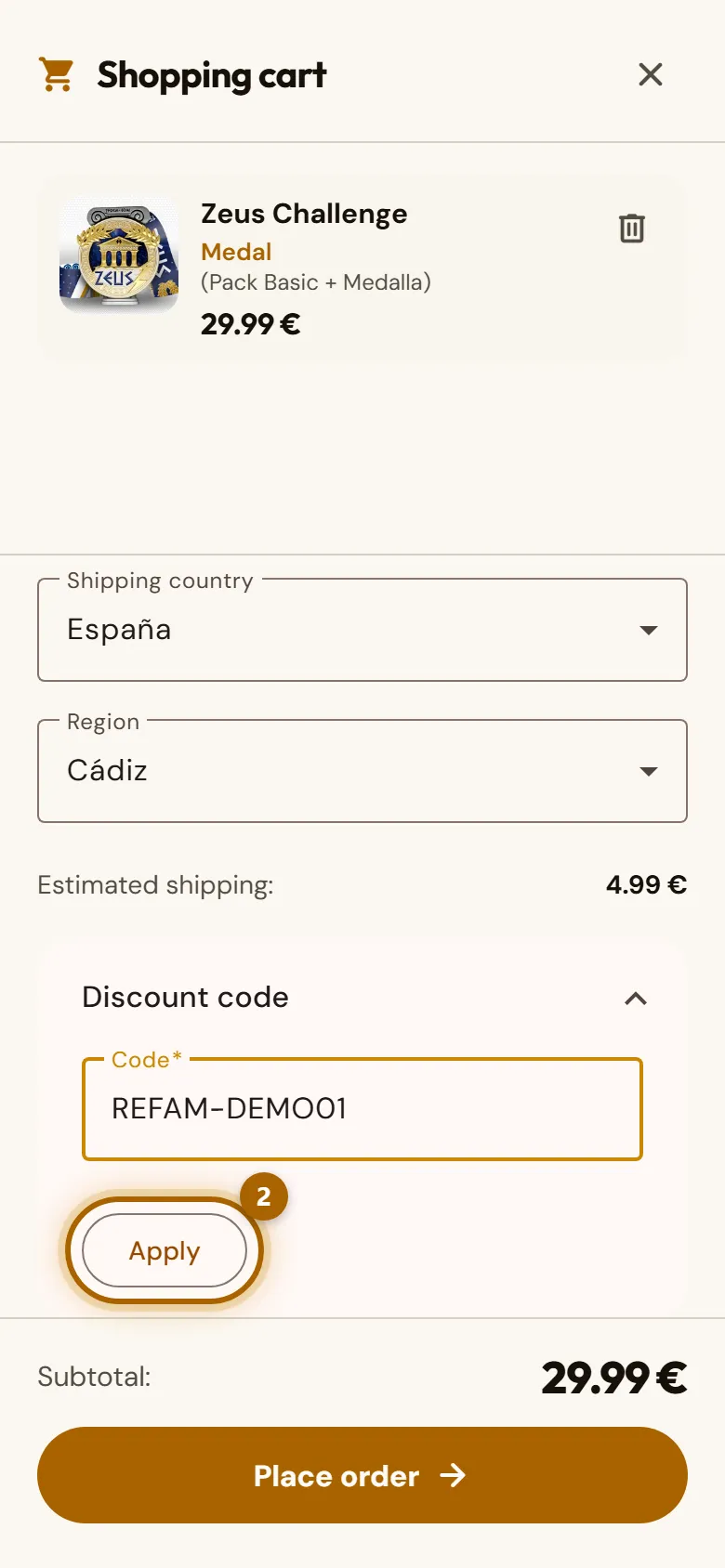
  2. Open your basket with the icon at the top. Choose your country and region to see what shipping costs. If you have a discount code, type it in Discount code and tap Apply. Then tap Place order.

    Basket with the discount code field and the «Place order» button highlighted.
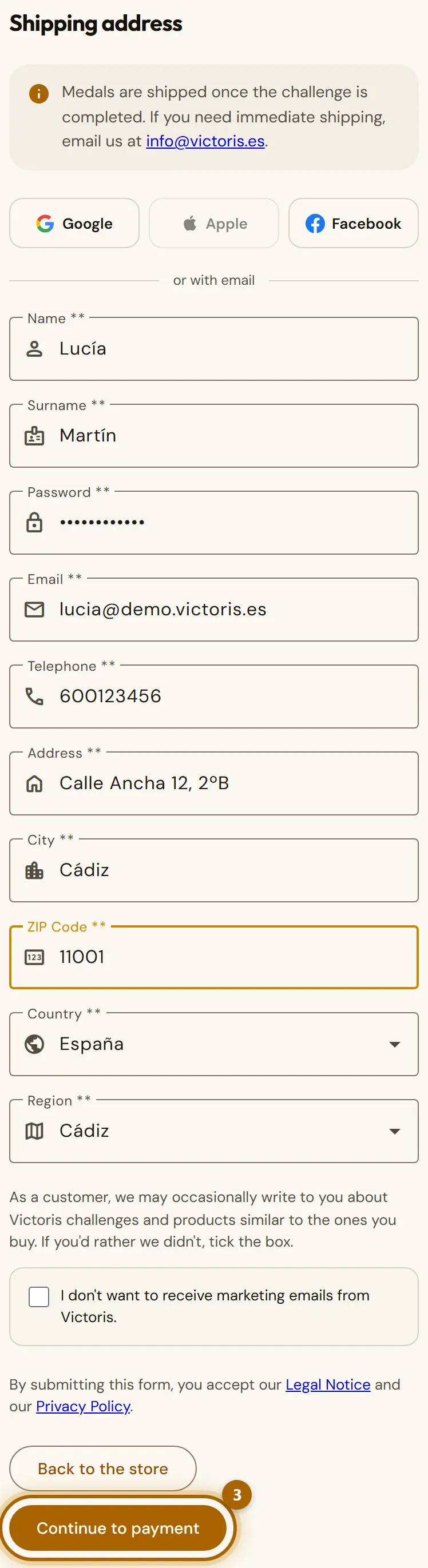
  3. Check your Shipping address: it's where your medal will be sent. If you don't have an account yet, you create it right here by choosing a password. Tap Continue to payment.

    «Shipping address» form with the «Continue to payment» button highlighted.
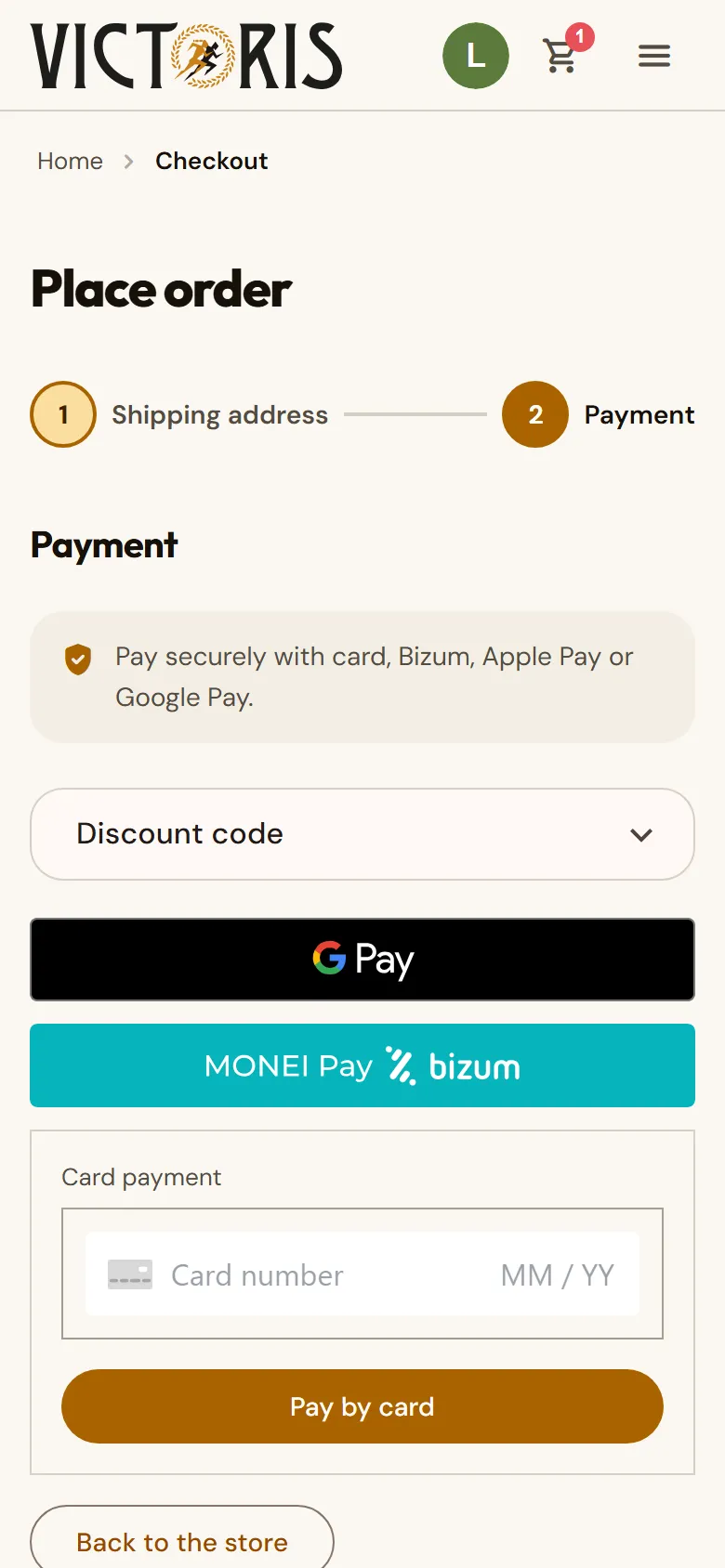
  4. Choose how to pay: card, Bizum, Apple Pay or Google Pay (the last two only appear if your phone supports them). If you pay by card, fill in the details and tap Pay by card. Your bank may ask you to confirm the payment in its app.

    Payment step with the payment methods and the order summary.
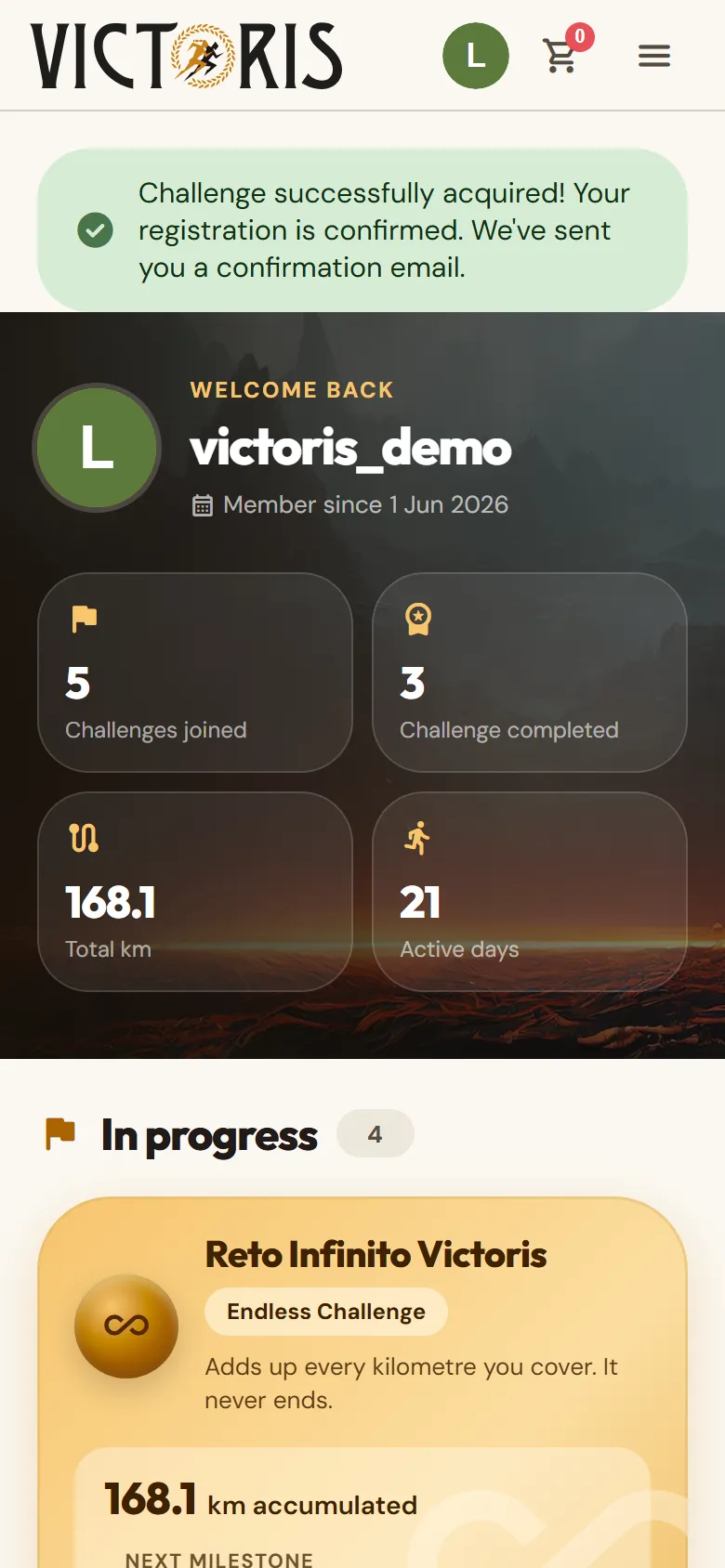
  5. Done: you'll go back to your personal area with the message Challenge successfully acquired! and you'll receive a confirmation email. The challenge now appears under In progress.

    Personal area with the «Challenge successfully acquired!» message.

Tip:The discount code only appears when you're logged in. Log in to your account first, then open your basket.

Careful:If the payment stays on We're checking your payment, don't pay again: wait a couple of minutes. If half an hour later the challenge still isn't in your personal area, write to us.

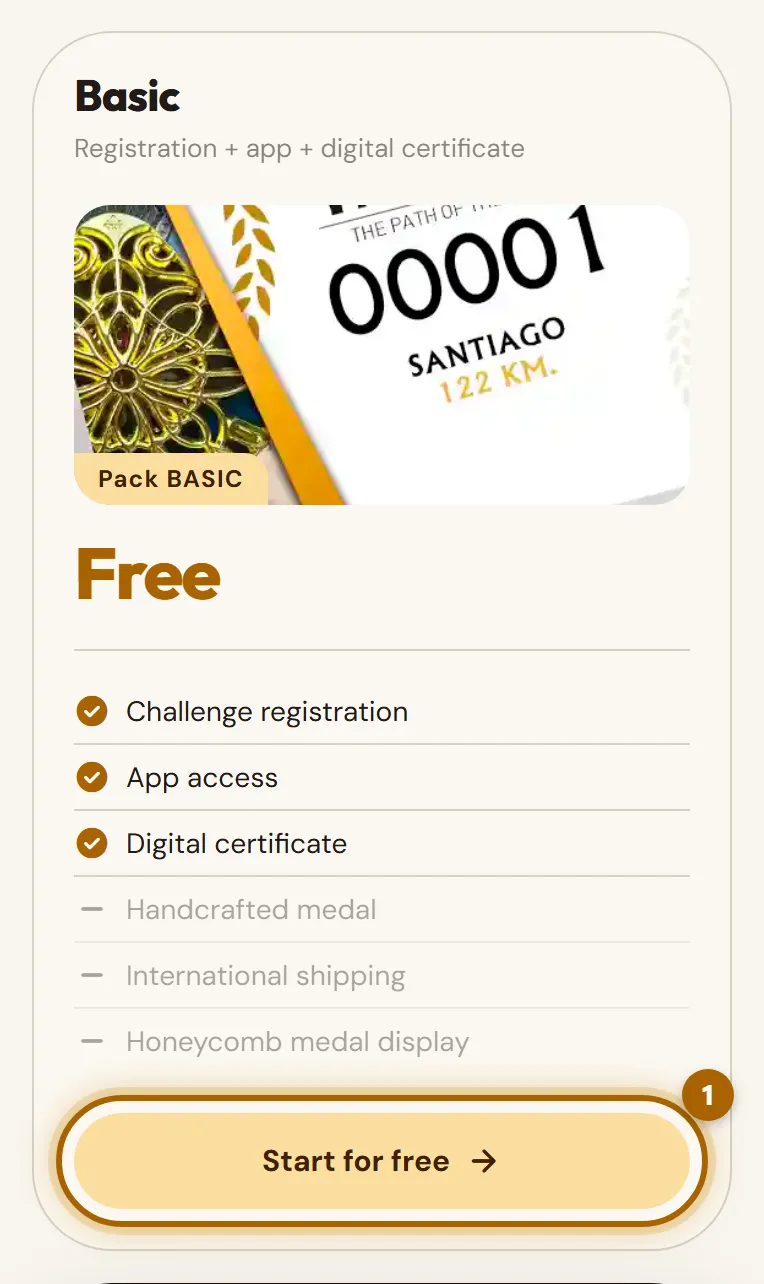
  1. On the page of a challenge with free registration, find the Basic pack and tap Start for free. If you haven't logged in, it will ask you to register first.

    Basic pack of a free challenge with the «Start for free» button highlighted.
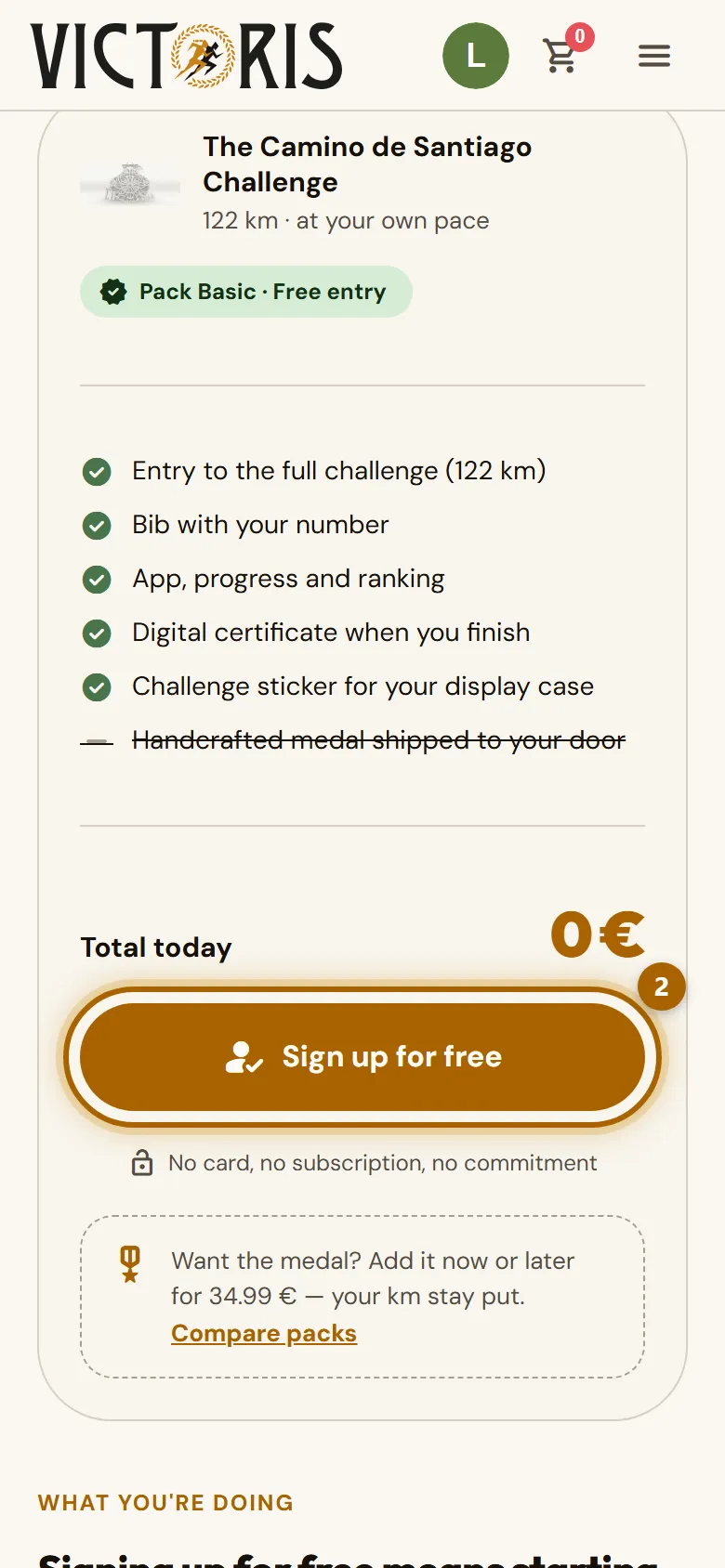
  2. If it's a long challenge, you can set a target date (it's optional). Tap Sign up for free and the challenge will appear in your personal area.

    Free registration with the «Sign up for free» button highlighted.
  3. Want the medal? Go back to the challenge page and tap Get your medal: it takes you to the packs, where you choose Medal or Super and pay as with any purchase. Your kilometres and your bib stay as they were. If you'd already finished the challenge, after paying you go straight to requesting the medal.

Tip:The Basic pack doesn't include a medal, but you can get it whenever you want: before, during or after finishing the challenge. You'll also find Get your medal on the challenge card in My space.

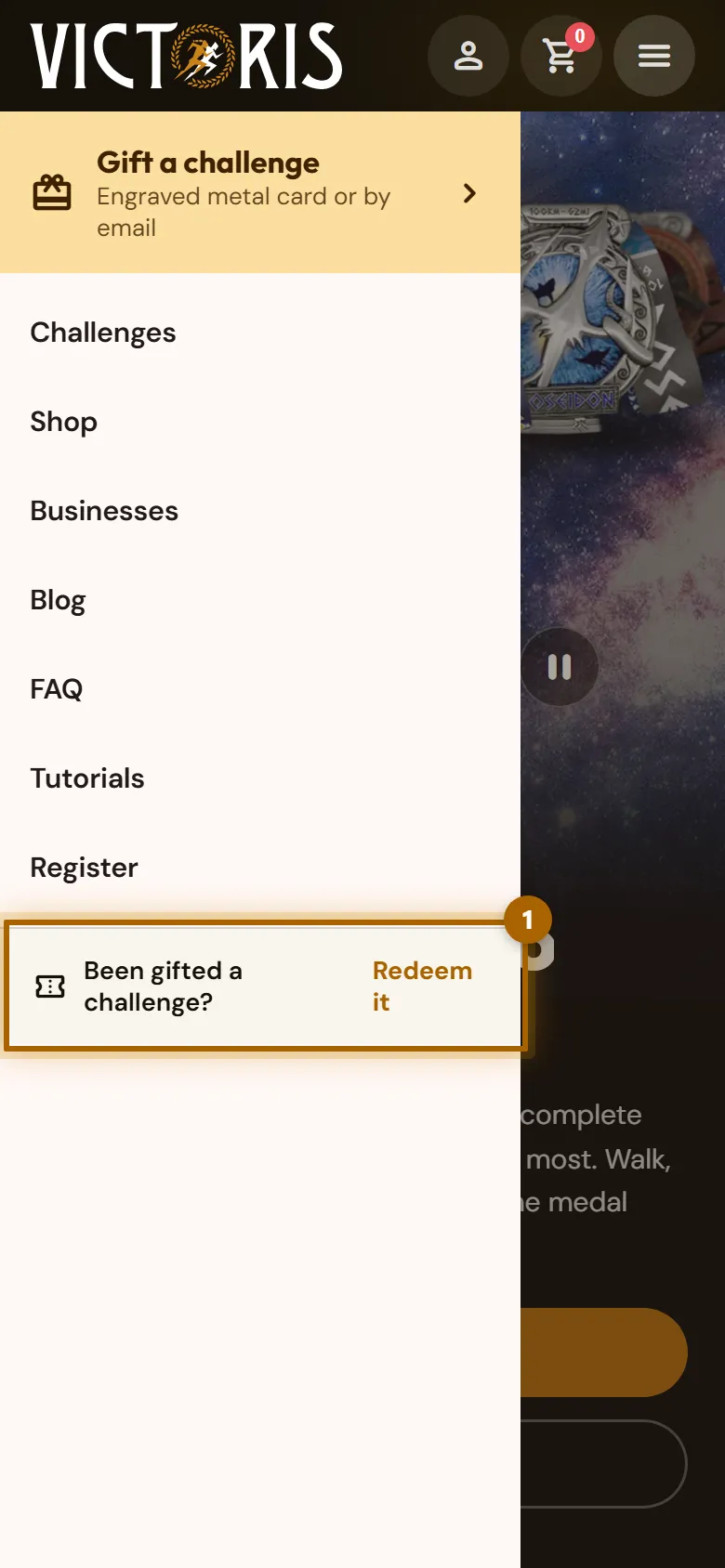
  1. If you received an email, tap the gift link and jump to step 3. If you have a card, open the menu and tap Been gifted a challenge? Redeem it.

    Menu with the link to redeem a gift highlighted.
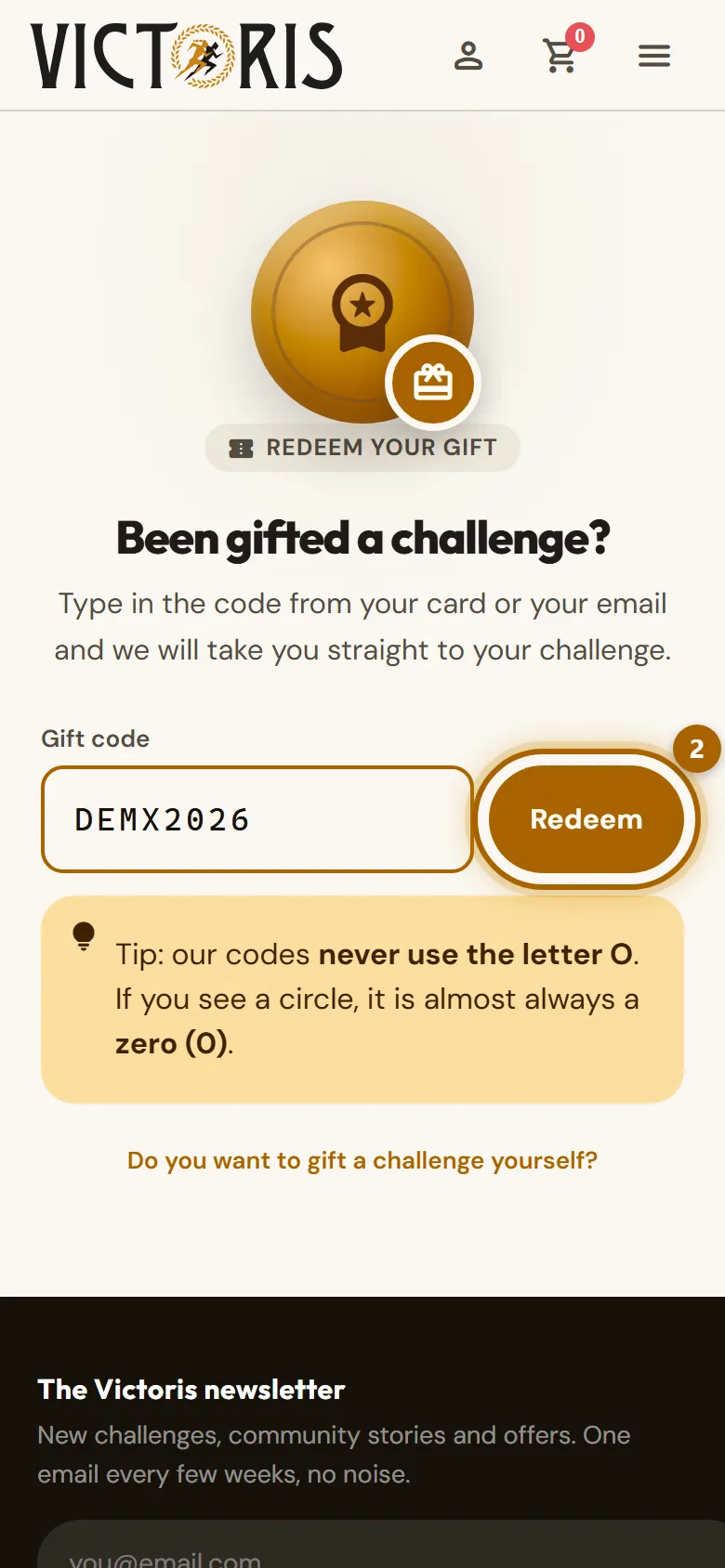
  2. Type the code exactly as it appears on your card and tap Redeem.

    «Gift code» field with the «Redeem» button highlighted.
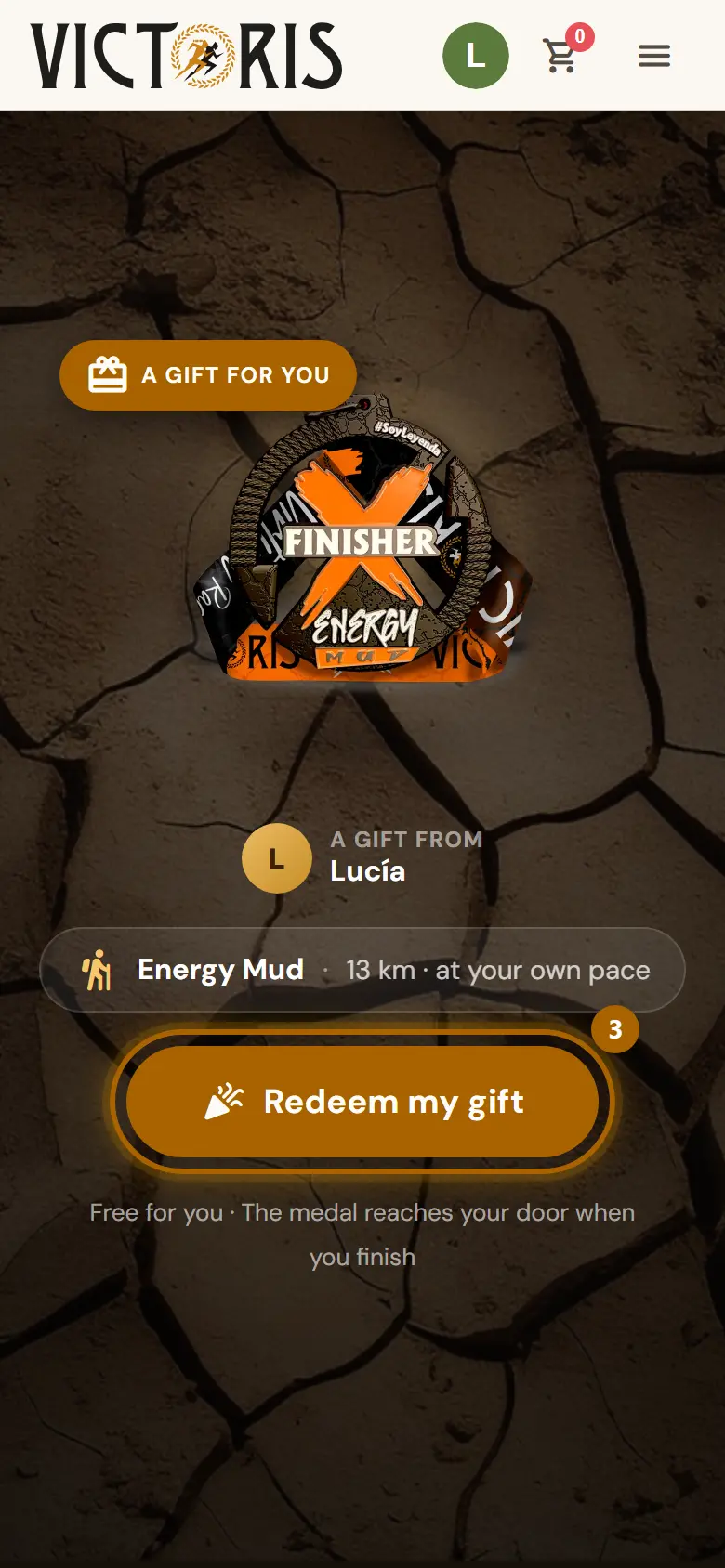
  3. If you don't have an account, create one right there; if you already have one, log in. Then tap Redeem my gift. The challenge will appear in your personal area, ready to start.

    Gift ready to redeem with the «Redeem my gift» button highlighted.

Tip:Our codes never contain the letter O: if you see a circle, it's a zero.

Careful:If you already had that same challenge, the page will tell you. Write to us and we'll swap it for another one.

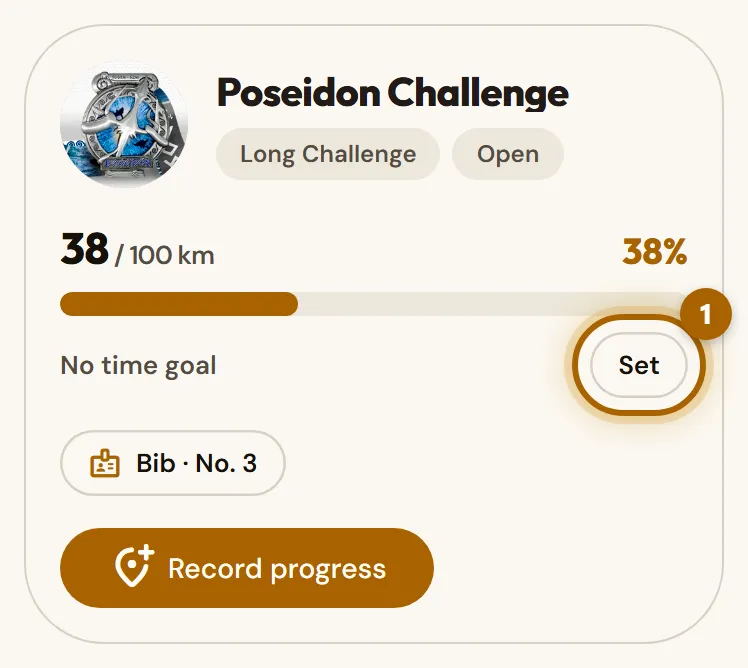
  1. In your personal area, on the challenge, tap Set (if it already has a date, Edit).

    Challenge in progress with the «Set» link highlighted.
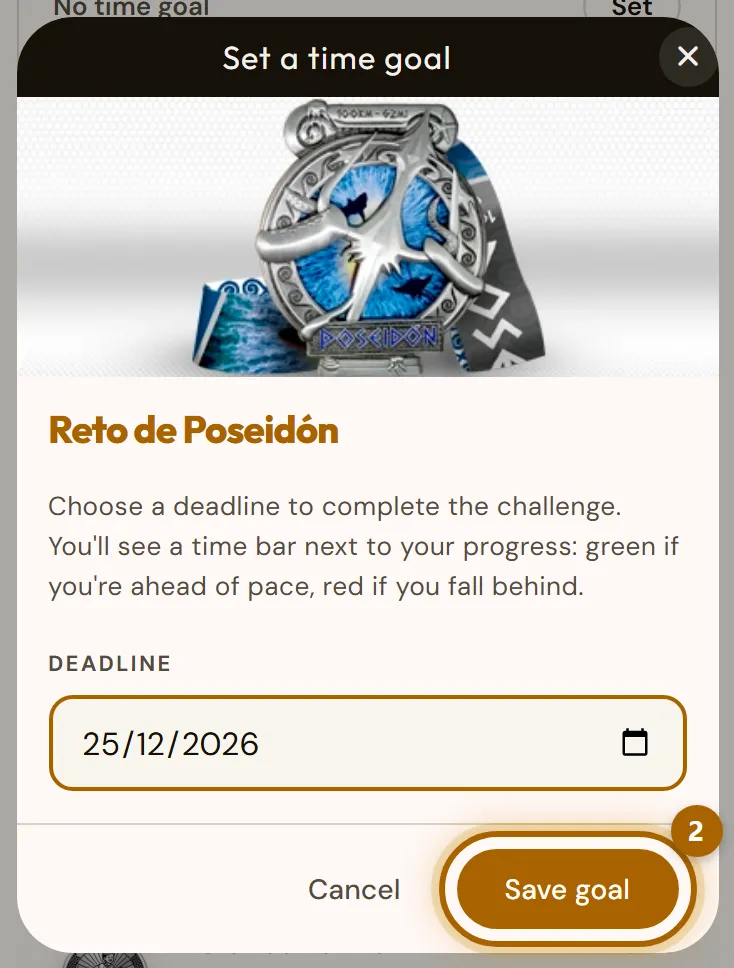
  2. Choose a Deadline later than today and tap Save goal. To remove it, tap Remove goal.

    «Set a time goal» window with the «Save goal» button highlighted.
  3. From then on, the challenge bar tells you whether you're ahead of or behind the pace you need, and how many days you have left.

Tip:If the date passes, don't worry: your medal is still waiting for you. The date is only there to keep you motivated.

Log your activity

Add kilometres by hand or with a GPX file.

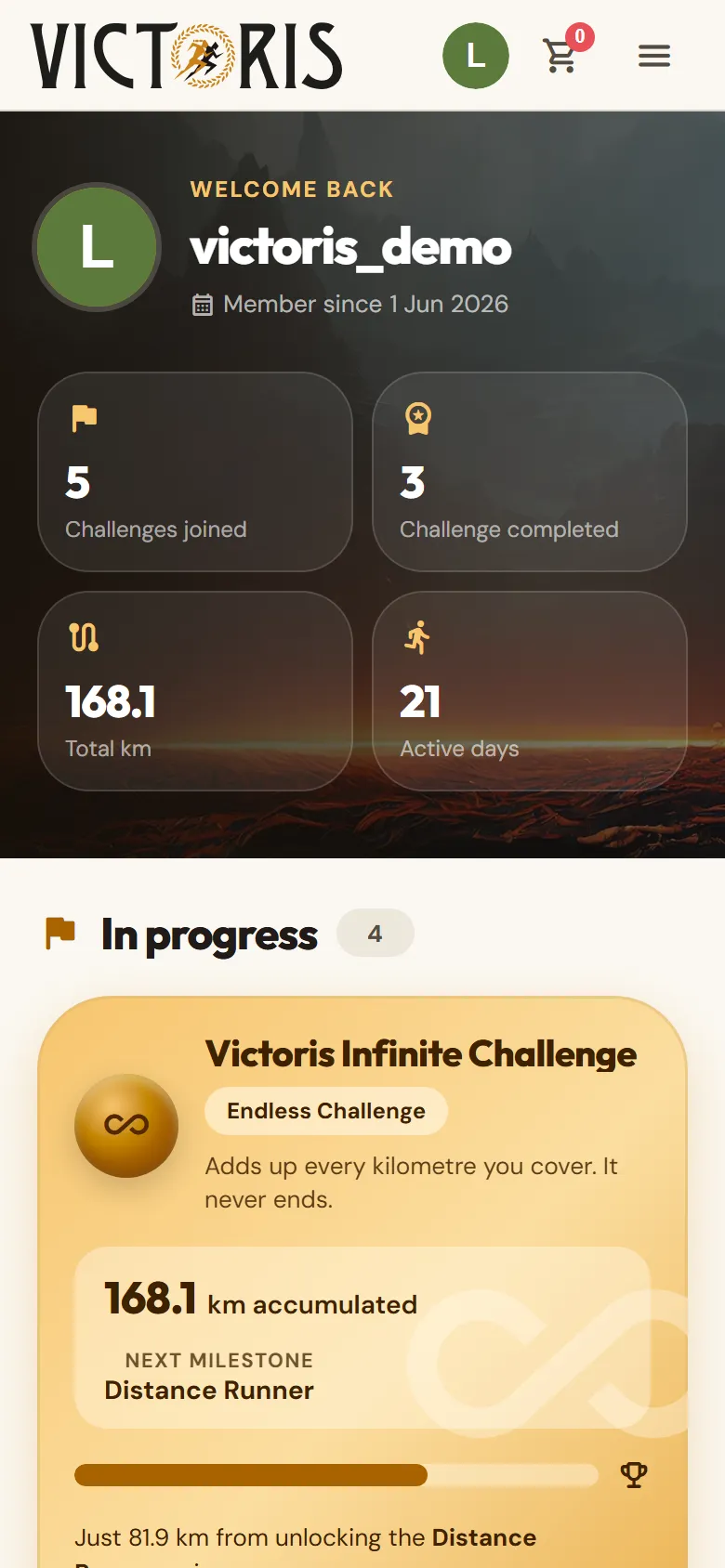
  1. When you log in, you land on My space. At the top you see your summary: challenges joined, challenges completed, total kilometres and days active.

    Header of the personal area with the greeting and the user's figures.
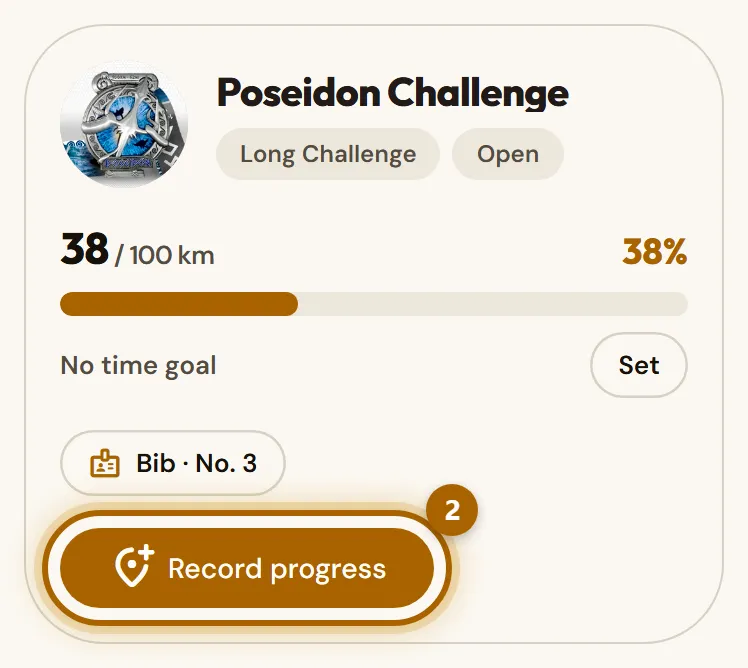
  2. Under In progress is every challenge you have under way, with its progress bar. From there you log your kilometres with Record progress, open your bib and set a target date.

    A challenge in progress with its bar and the «Record progress» button highlighted.
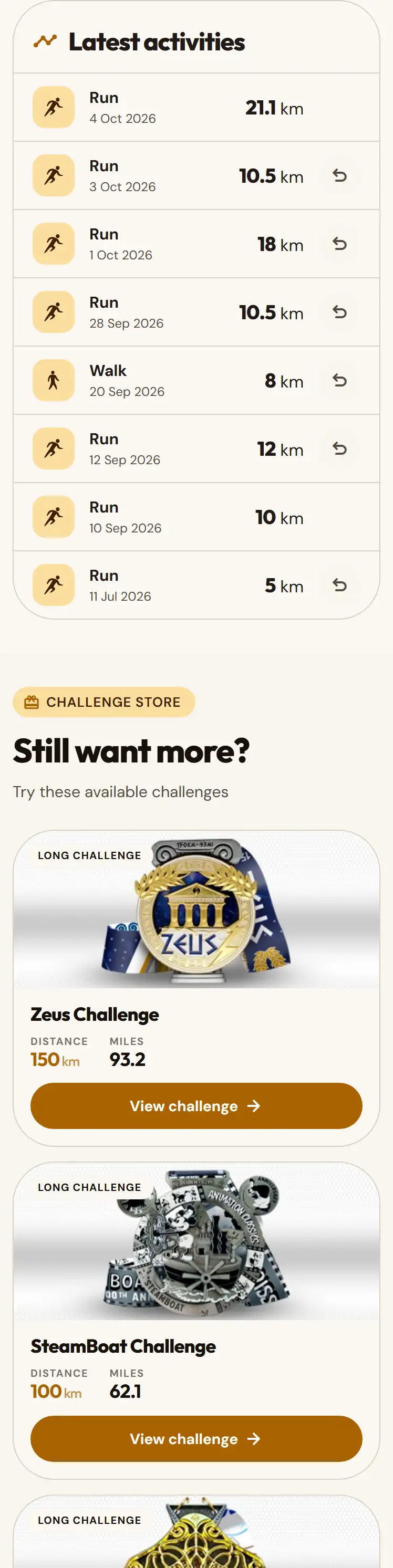
  3. Further down, Latest activities shows what you logged most recently (if you made a mistake, you can undo it from there), and Medals earned shows the challenges you've already finished, with their certificate.

    «Latest activities» and «Medals earned» lists.

Tip:On your phone, tap your photo at the top right to get back to My space from any page.

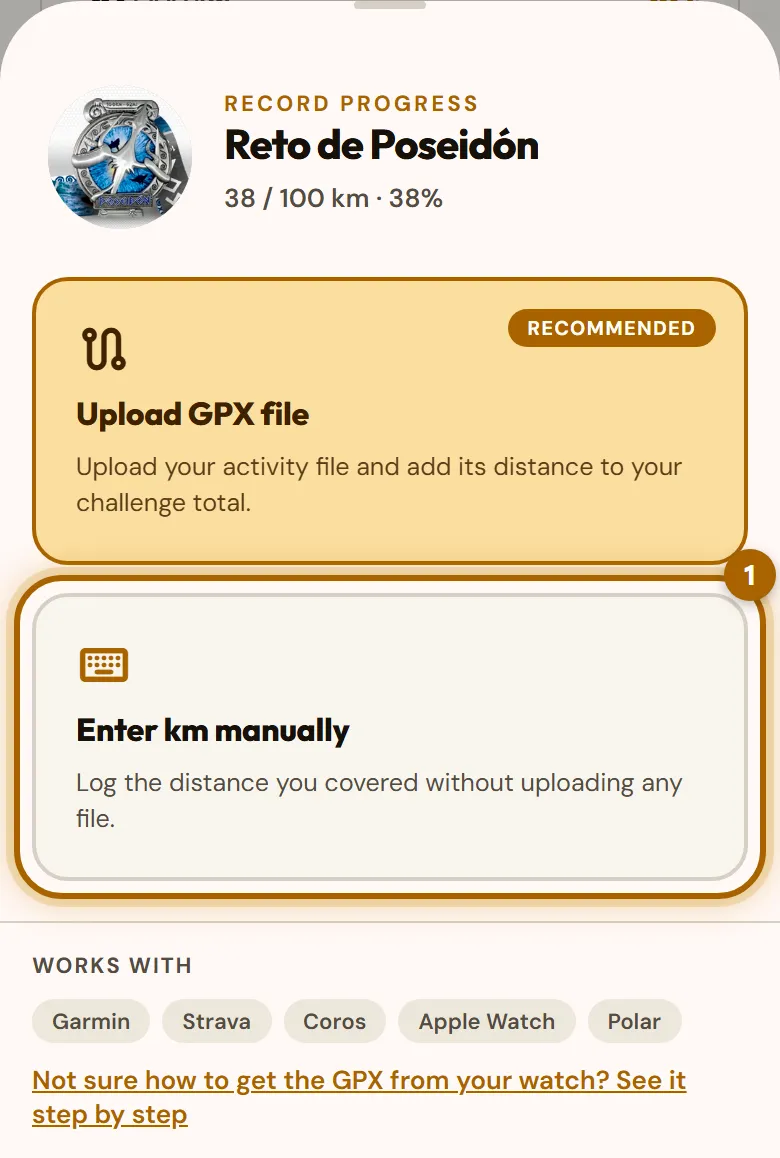
  1. In your personal area, on the challenge, tap Record progress and choose Enter km manually.

    «Record progress» window with the «Enter km manually» option highlighted.
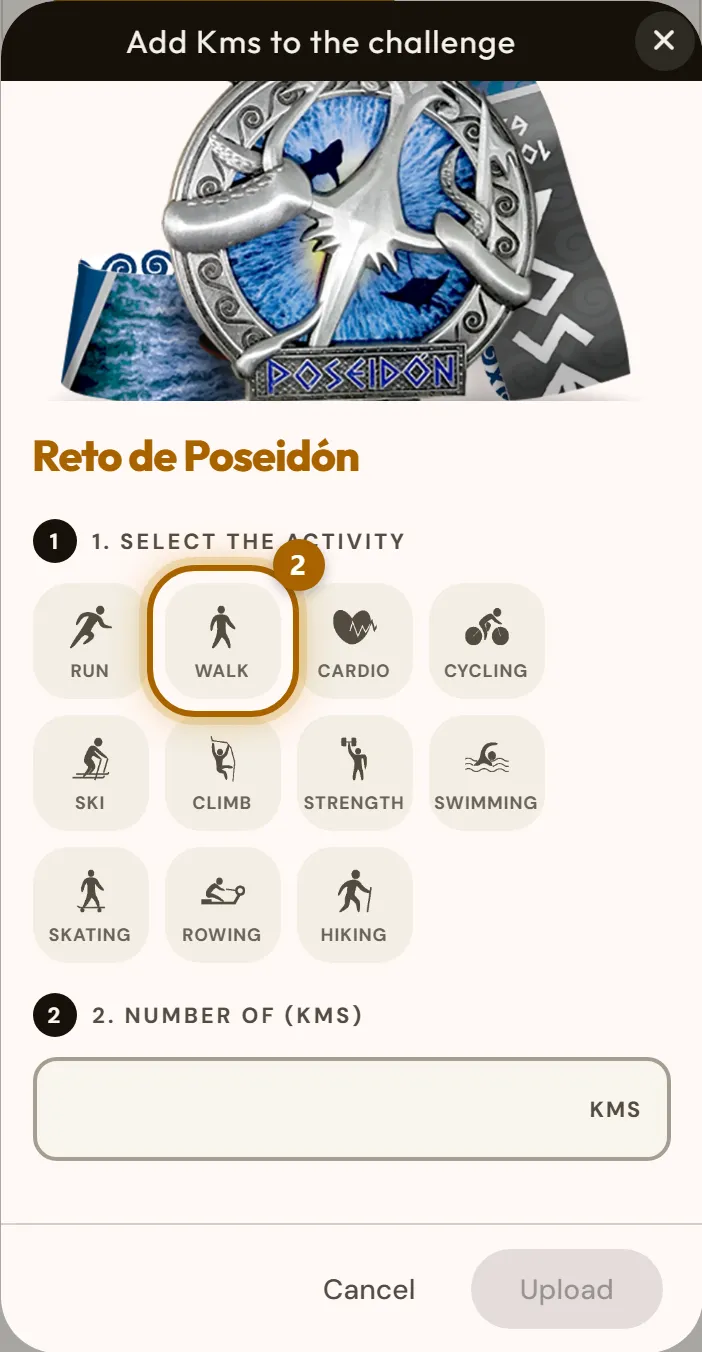
  2. Choose the activity you did. Check the unit, because it changes depending on the activity: Walk is logged in steps, Cardio and strength training in calories, and Run, Cycling or Swimming in kilometres.

    Grid of activities to choose from, with one selected.
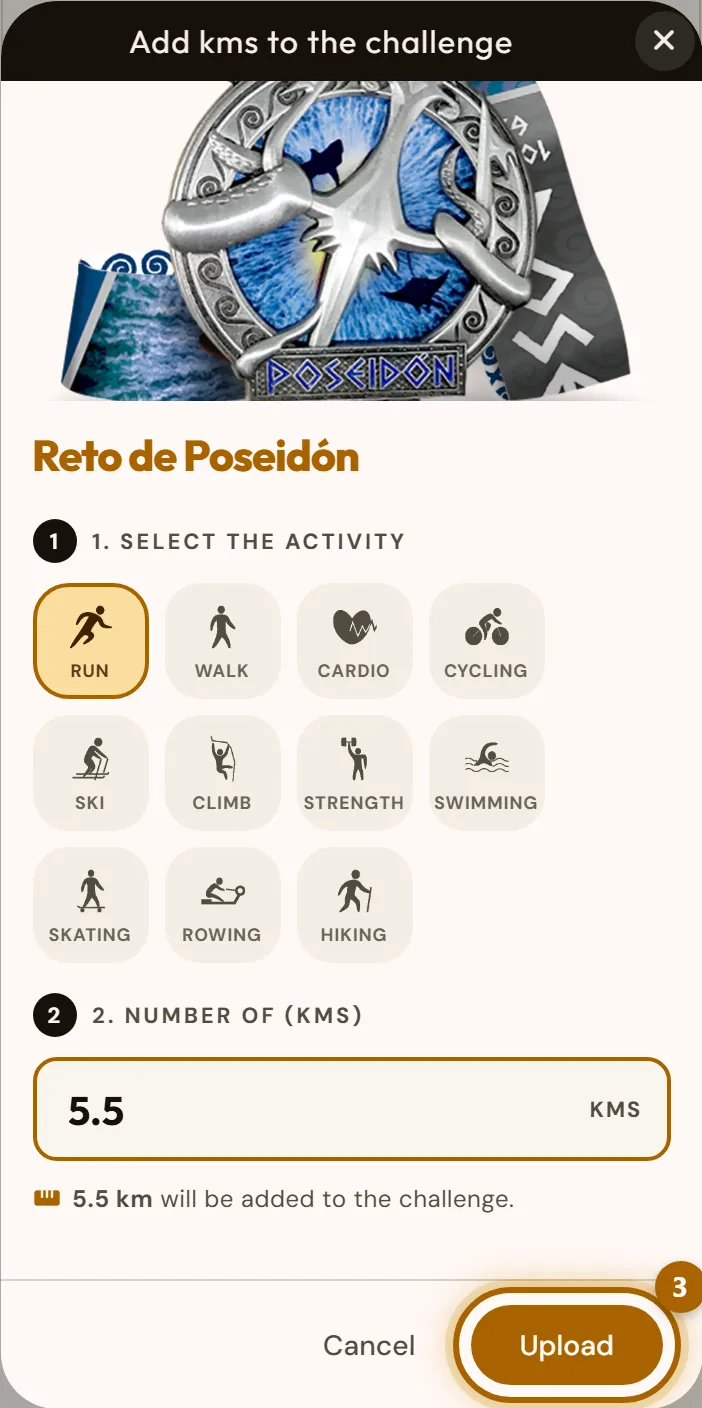
  3. Type the number. For decimals use a full stop, not a comma: 5.5, not 5,5. Below it you'll see how many kilometres will be added to the challenge: Victoris converts steps and calories for you. Tap Upload.

    Field with the number typed in, the kilometres that will be added and the «Upload» button highlighted.
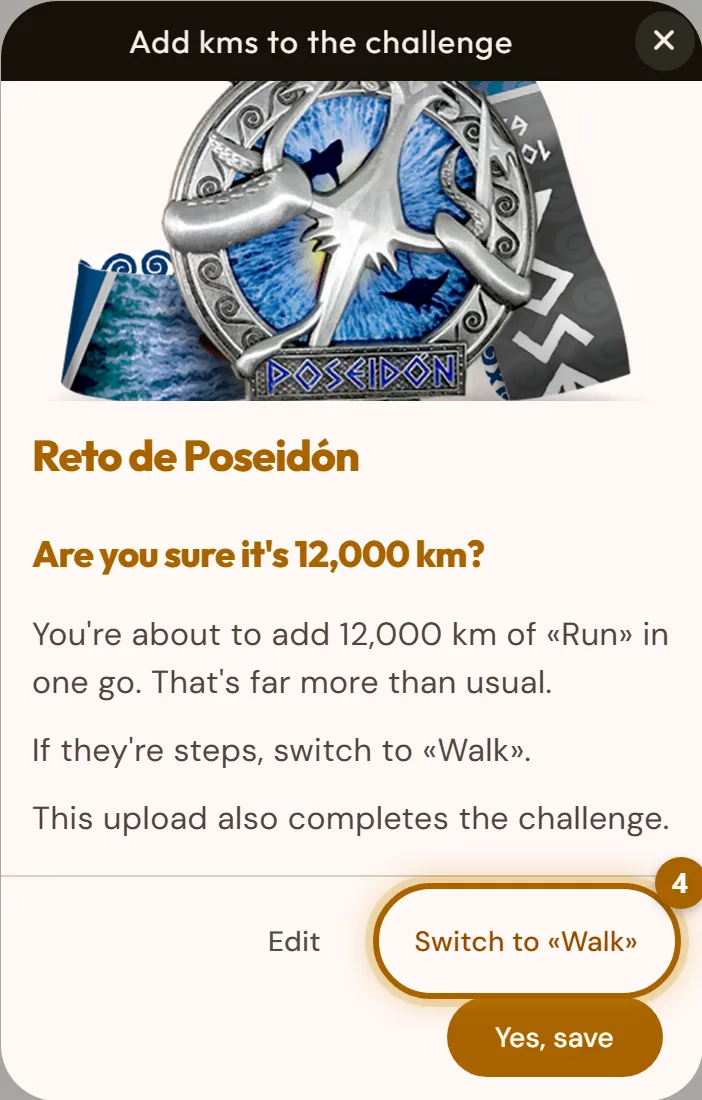
  4. If the number is much higher than usual for that activity, or if it completes the challenge, we ask you to confirm before saving. If they were actually steps, you can switch to Walk right there.

    «Are you sure it's 12,000 km?» warning with the «Edit», «Switch to «Walk»» and «Yes, save» buttons.
  5. The challenge bar moves forward straight away and the activity appears under Latest activities. If you reach the finish line, we'll celebrate with you.

Careful:Check the activity and the number before you tap Upload. If you choose Run and type 12000 thinking of steps, we'll warn you that it's 12,000 km. If a wrong number still gets saved, you can undo it from My space: see I made a mistake logging an activity.

Tip:In competitive challenges you can't log kilometres by hand: you need the GPX file.

A GPX is a file with the route of your activity. Your watch or sports app creates it (Strava, Garmin Connect, Coros, Polar…). First you download it to your phone or computer, then you upload it to Victoris.

  1. Get the GPX file of your activity. If you don't know how, you'll find the Strava and Garmin guides below.

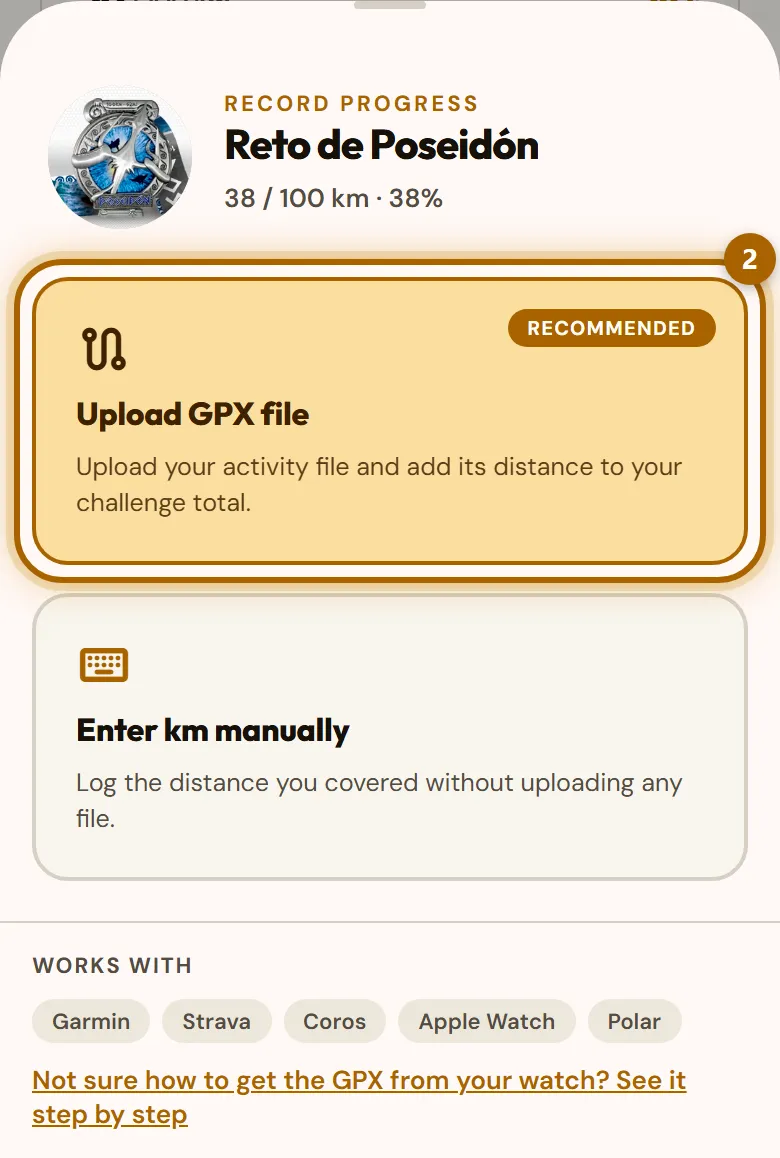
  2. In your personal area, on the challenge, tap Record progress and choose Upload GPX file.

    «Record progress» window with the «Upload GPX file» option highlighted.
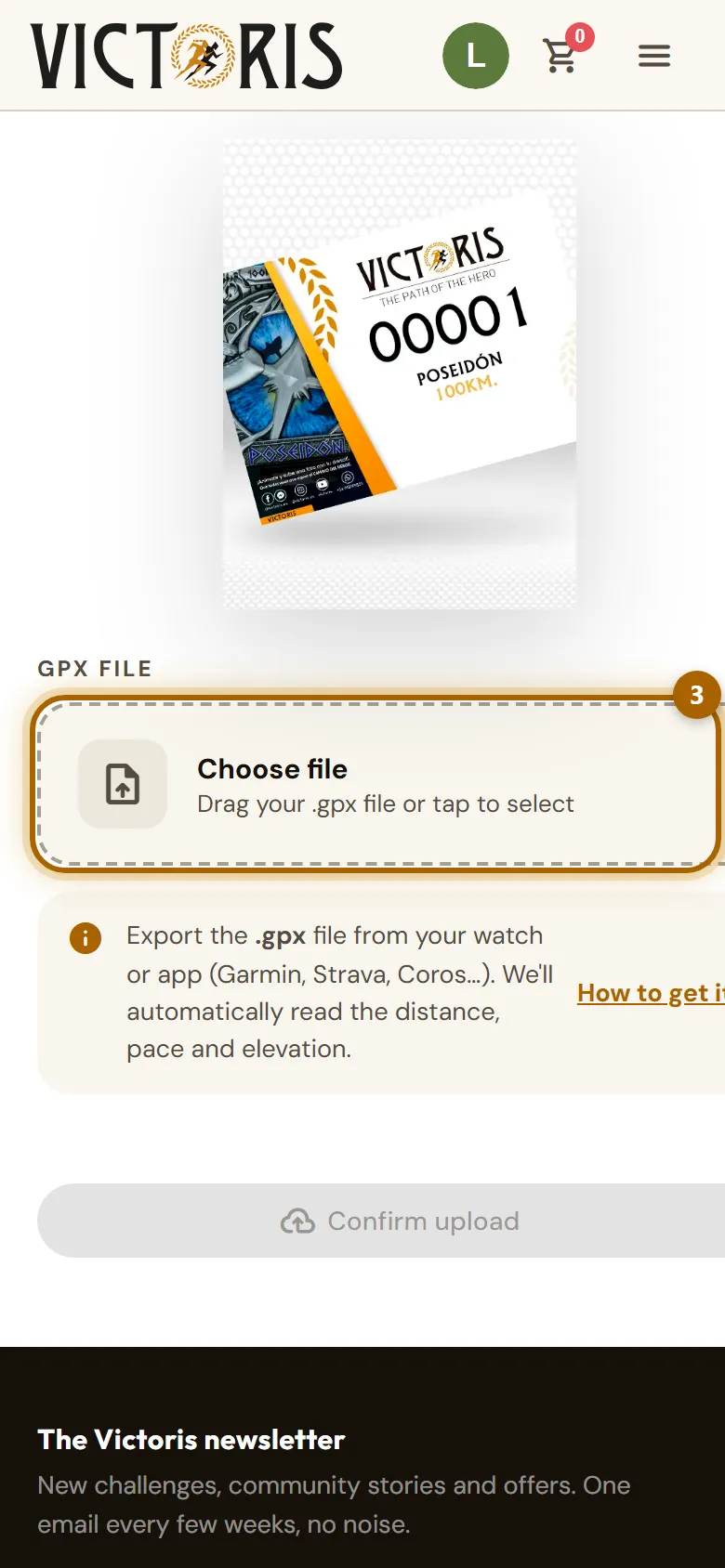
  3. Tap Choose file (on a computer you also have the Browse button) and find the file. On a phone it's usually in the Downloads folder (or in the Files app on iPhone) and ends in .gpx.

    «Record activity» screen with the «Choose file» area highlighted.
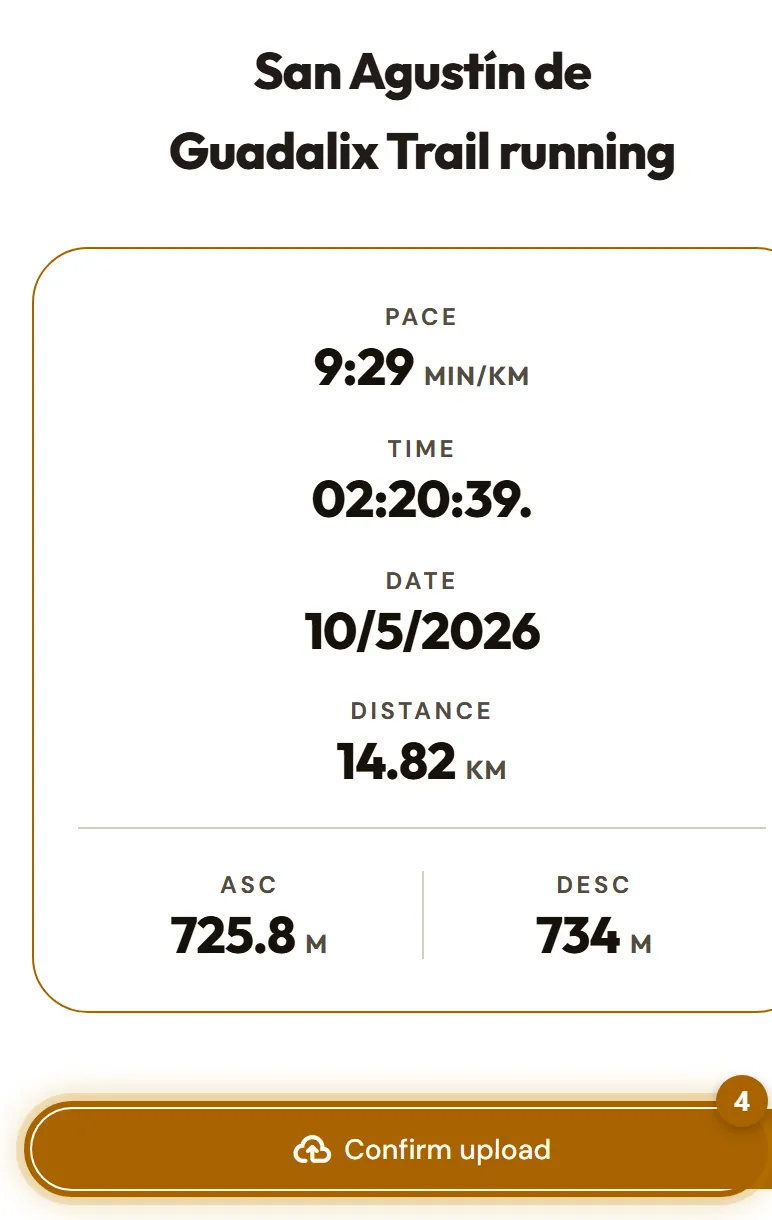
  4. Victoris shows you what it has read: distance, time, pace, date and elevation, with their charts. If everything looks right, tap Confirm upload.

    Summary of the activity read from the GPX with the «Confirm upload» button highlighted.

Careful:In a short challenge, the GPX has to cover the challenge's full distance (and its elevation) in one go. In a long challenge, every GPX adds to the total.

Tip:Your route never leaves your phone: the file is read in your own browser and Victoris only receives the figures (distance, time and elevation).

Careful:Only the .gpx format works. Activities without GPS, like the treadmill or the gym, don't have a GPX: in non-competitive challenges, log them by hand.

  1. Open the browser on your phone (Chrome or Safari) or on your computer, go to strava.com and log in with your Strava account. Find the activity you want to upload (in the menu, My Activities) and open it.

    Open strava.com
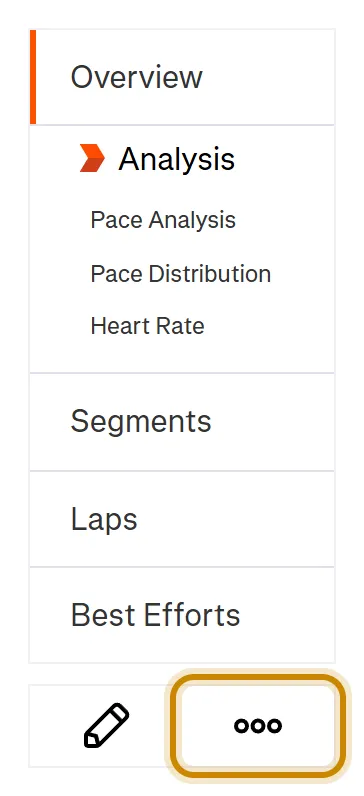
  2. On the activity page, tap the three-dot button ⋯ in the left-hand column.

    Strava activity page with the three-dot button highlighted.
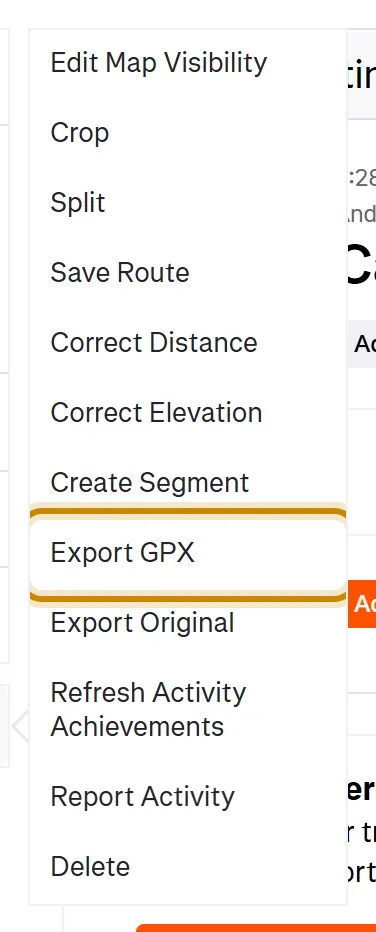
  3. In the menu, tap Export GPX. The file is saved to your Downloads folder.

    Strava activity menu with the «Export GPX» option highlighted.
  4. Go back to Victoris and upload it with Record progress and Upload GPX file.

    How to upload the GPX

Tip:If, when you tap the activity, your phone takes you to the Strava app, go back, press and hold the link and choose to open it in the browser. Or do it from a computer.

Careful:You can only export your own activities, and only those with a GPS route. If Export GPX doesn't appear, that activity has no GPS.

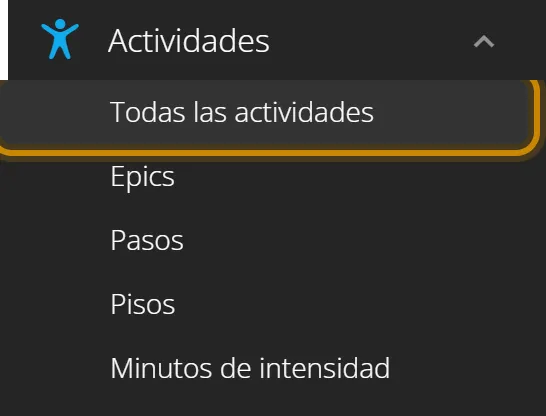
  1. Open the browser on your phone or computer, go to connect.garmin.com and log in with your Garmin account. Open the menu (☰) and tap Activities and then All Activities.

    Open connect.garmin.com
    Garmin Connect menu with «All Activities» highlighted.
  2. Tap the activity you want to upload.

  3. Tap the cogwheel (⚙), at the top right of the activity.

    Garmin Connect activity with the cogwheel highlighted.
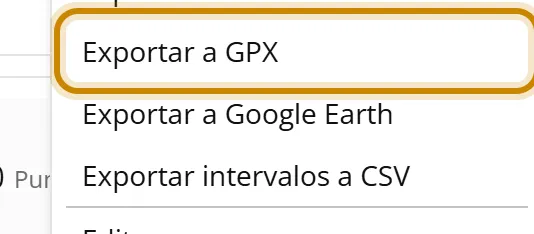
  4. Tap Export to GPX. The file is saved to your Downloads folder. Upload it to Victoris with Record progress and Upload GPX file.

    Cogwheel menu with «Export to GPX» highlighted.

Tip:If you also use Strava and your watch syncs with it, you can get the GPX from Strava, whichever you prefer.

  • Almost all sports apps have an Export or Share option on each activity. Look there and choose the GPX format.
  • If your watch syncs with Strava (Coros, Polar, Suunto, Wahoo and many more do), the easiest thing is to get the GPX from Strava.
  • Apple Watch and the iPhone Health app don't let you export a single activity as GPX. If you use Strava, connect it to Health and get the GPX from Strava. If not, log your kilometres by hand (in non-competitive challenges).

Tip:Can't find the option? Write to us and tell us which watch or app you use, and we'll help you.

  1. Install Victoris on your Android phone, from Google Play or from the Install Victoris banner.

    How to install it
  2. In the app where you have the file (your Downloads, your file manager or your sports app), tap Share and choose Victoris.

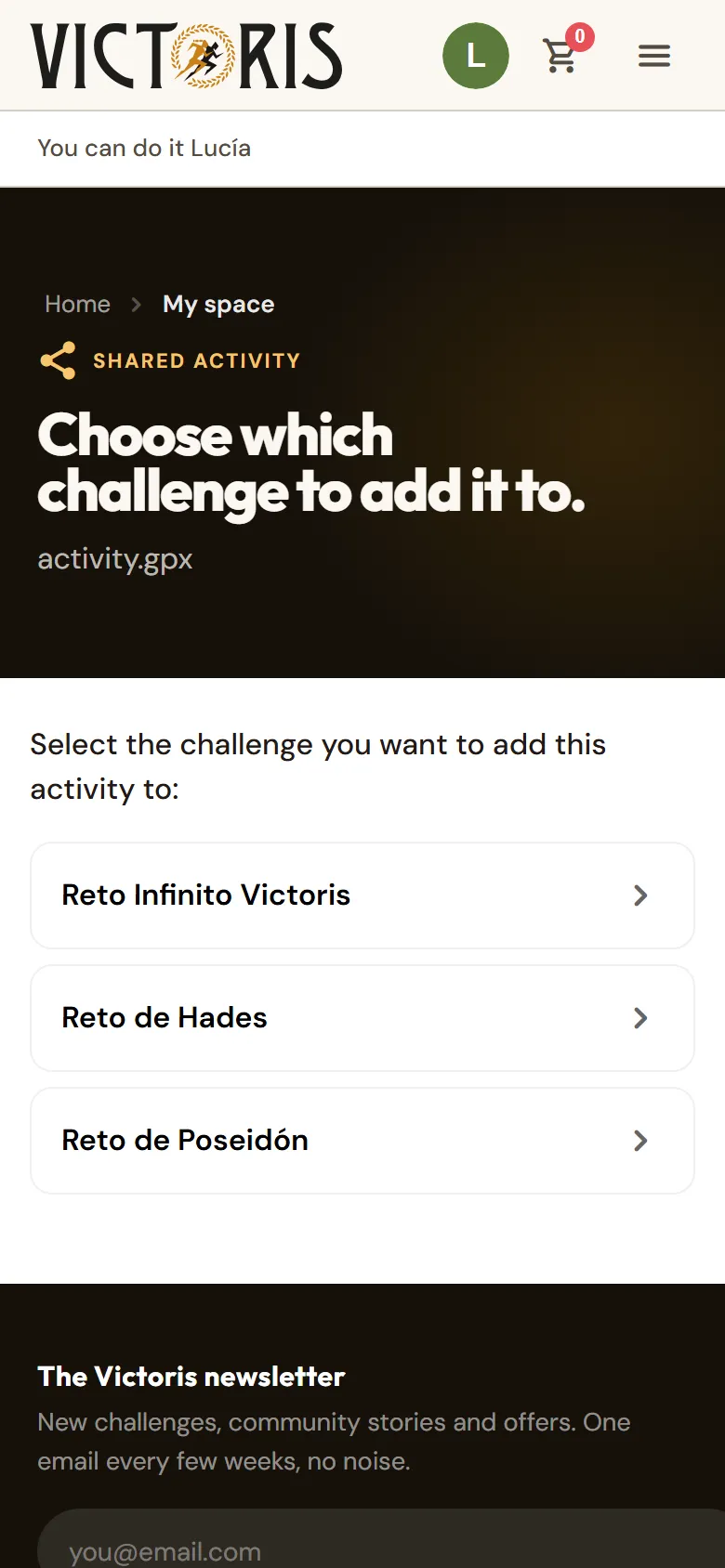
  3. Victoris opens and asks which challenge you want to add the activity to. Pick the challenge and it takes you to the upload screen with the file already loaded. Tap Confirm upload.

    «Choose which challenge to add it to» screen with the active challenges.

Careful:This option doesn't exist on iPhone: upload the file with Choose file.

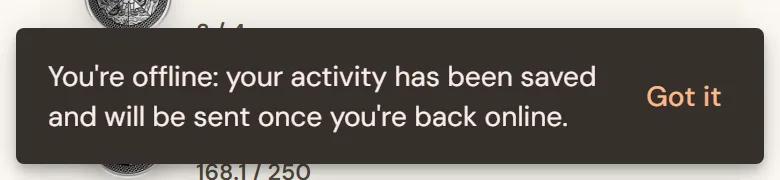
  1. Log your activity as usual. If there's no connection, you'll see the message You're offline: your activity has been saved and will be sent once you're back online.

    Message saying the activity was saved offline.
  2. Tap Got it and carry on with your day. When your phone gets its connection back, Victoris will send it automatically.

Careful:Don't log it again: it would be counted twice.

  1. Don't request the medal yet, even if the challenge has been marked as finished. As long as you don't request it, you can undo the activity yourself.

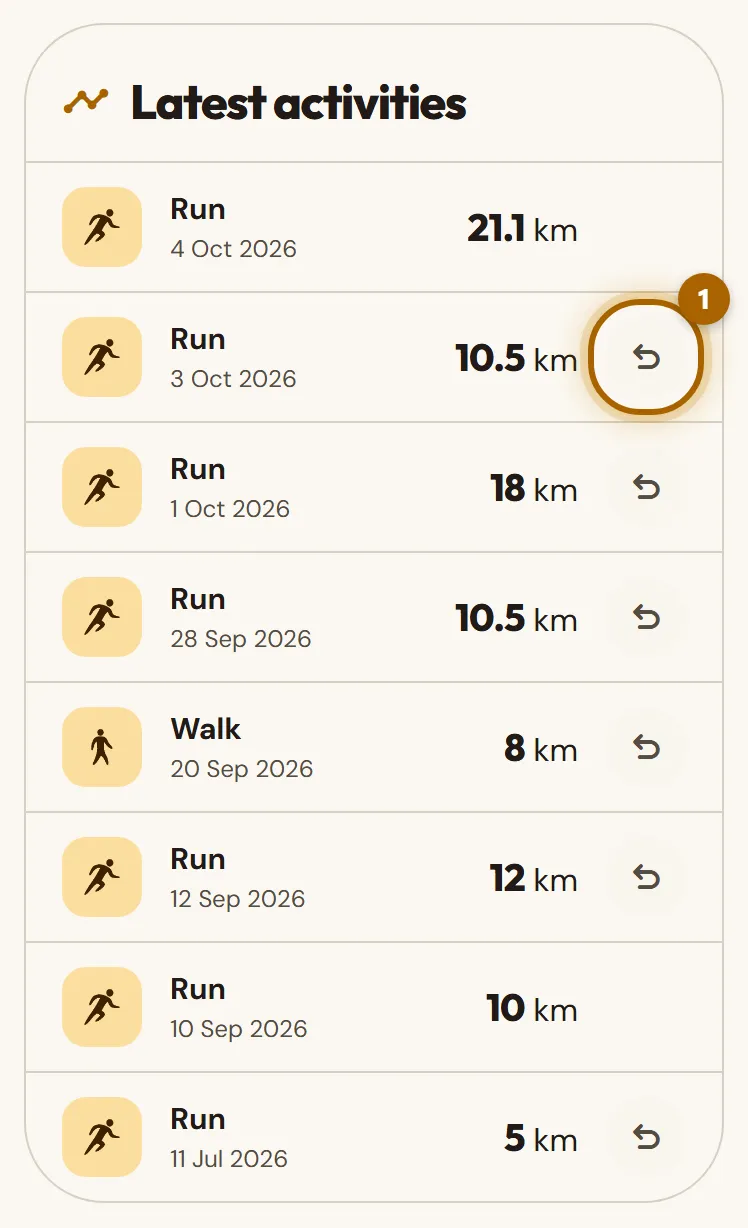
  2. In My space, under Latest activities, tap Undo next to the wrong activity. On mobile it's the curved arrow at the end of the row.

    «Latest activities» list with the «Undo» button of one activity highlighted.
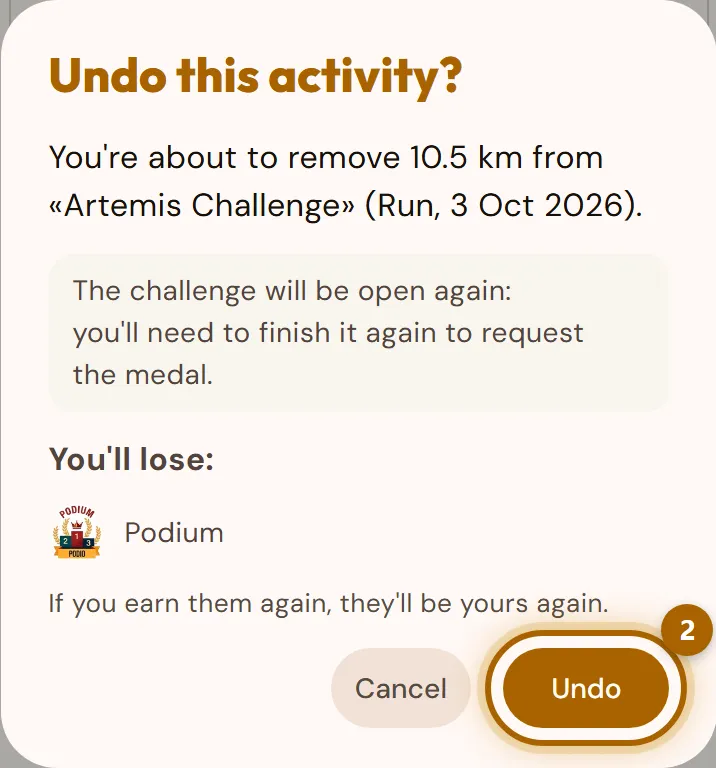
  3. Before you confirm, we tell you what will happen: how many kilometres are removed, whether the challenge opens again and which achievements or coins you lose. Tap Undo to confirm.

    «Undo this activity?» window with the kilometres to be removed, the notice that the challenge will open again and the «Undo» button highlighted.
  4. If you already requested the medal, or the activity is an old one from a competitive challenge, it can't be undone from the app. Write to us at info@victoris.es with your username, the challenge and the activity (date and number), and we'll fix it.

Tip:The most common mistake is choosing Run and typing in the day's steps. Walk is the activity that's logged in steps.

Careful:When you undo an activity you lose the achievements and coins that depended on it; if you earn them again, they'll be yours again. Whatever we've already sent to your home stays with you.

Finish and receive your medal

The medal, the bib, the certificate and the leaderboard.

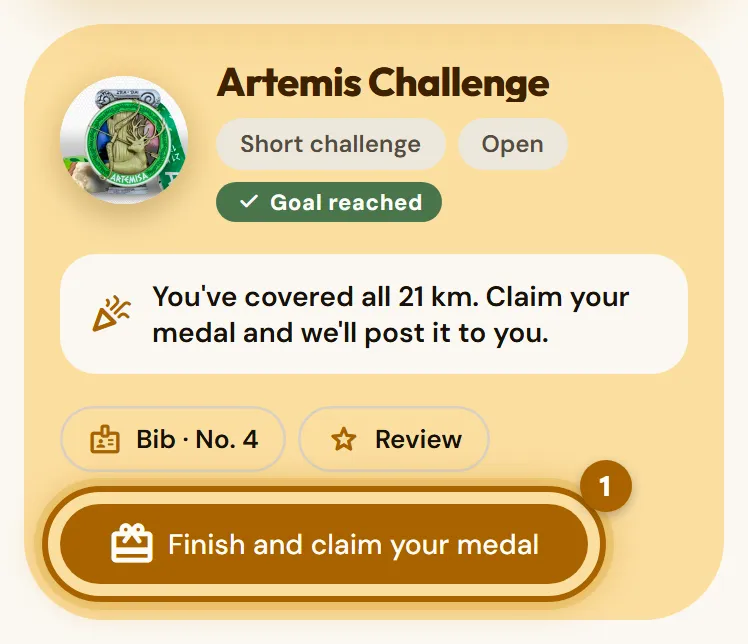
  1. When you complete the distance, you'll see Challenge completed!. Tap Claim my medal. If you closed that message, the challenge in your personal area shows the Finish and claim your medal button.

    Completed challenge with the «Finish and claim your medal» button highlighted.
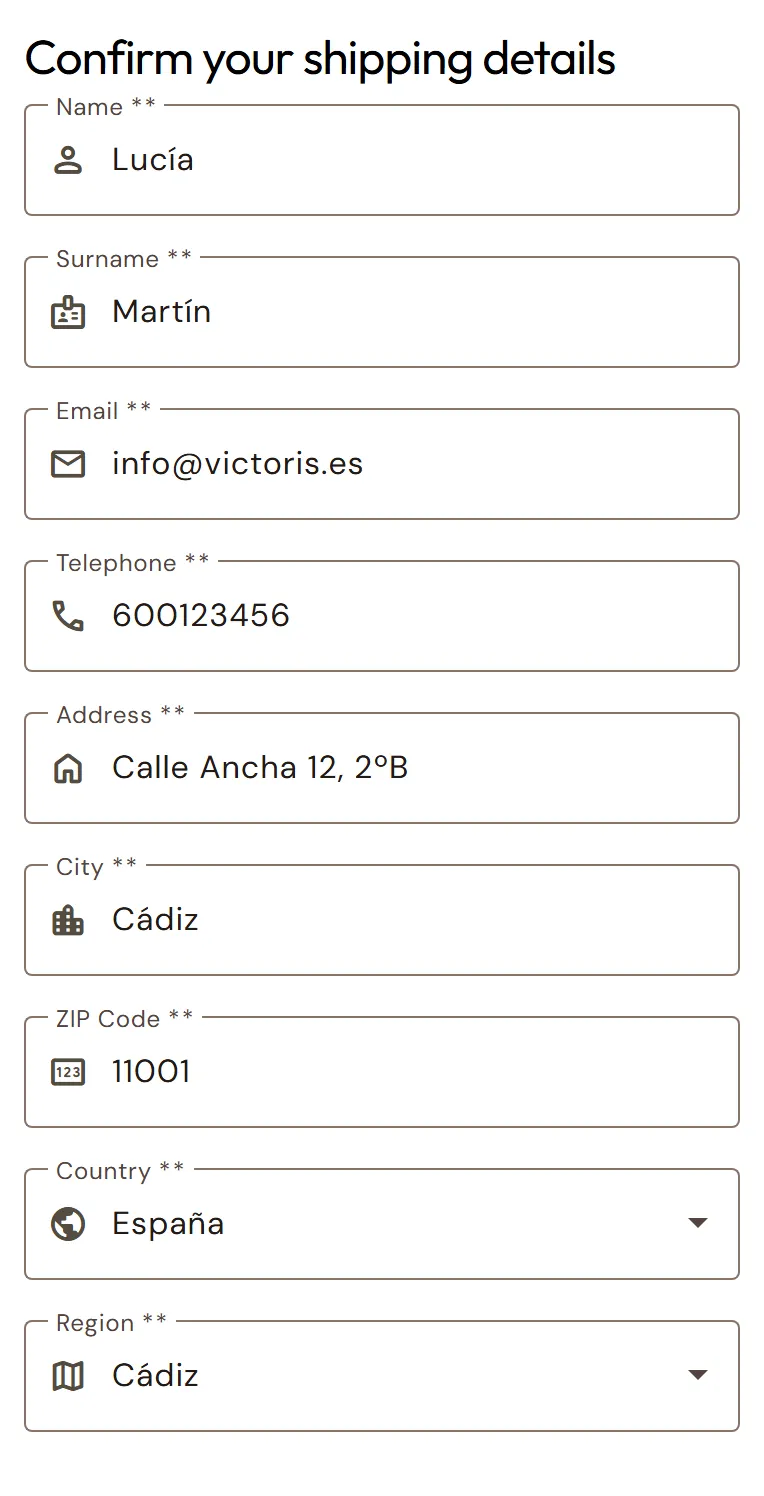
  2. Take your time over Confirm your shipping details. The medal will go to this address, so check the street, the number, the postcode and your phone number.

    «Confirm your shipping details» form.
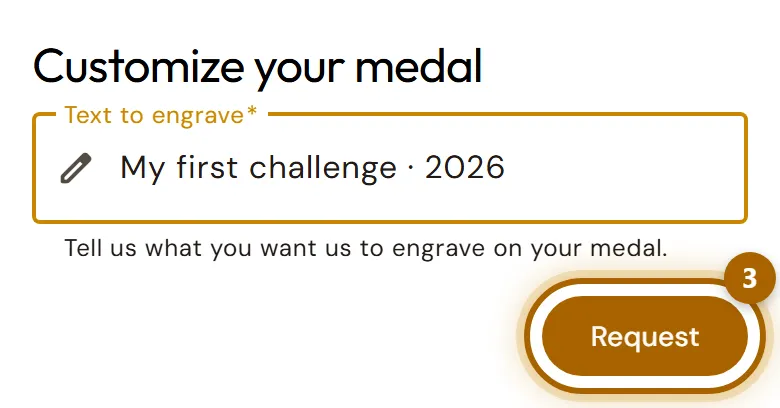
  3. Under Customize your medal you can type the text you want engraved (up to 120 characters). Tap Request.

    «Text to engrave» field and the «Request» button highlighted.
  4. You'll get a confirmation email. We'll now start preparing your medal. Take the chance to review the challenge: it helps us a lot.

Careful:Claiming the medal can't be undone: as soon as you tap Request, we start engraving it. If you see anything odd in your kilometres, write to us first.

  • Preparation: we process the shipment within 3-5 working days of you claiming your medal.
  • Delivery: 2-4 days on the mainland and 4-10 days on the islands and the rest of Europe.
  • Carrier: we ship with Correos and SEUR.
  • Shipping costs: paid separately and depend on the pack and the destination. You see them in your basket before you pay.
  • Collectible coins: they travel free with your next paid challenge, one per shipment. You don't have to ask for them.

Careful:If we ever run out of stock of a medal, we'll let you know by email. In that case the time may stretch to a month.

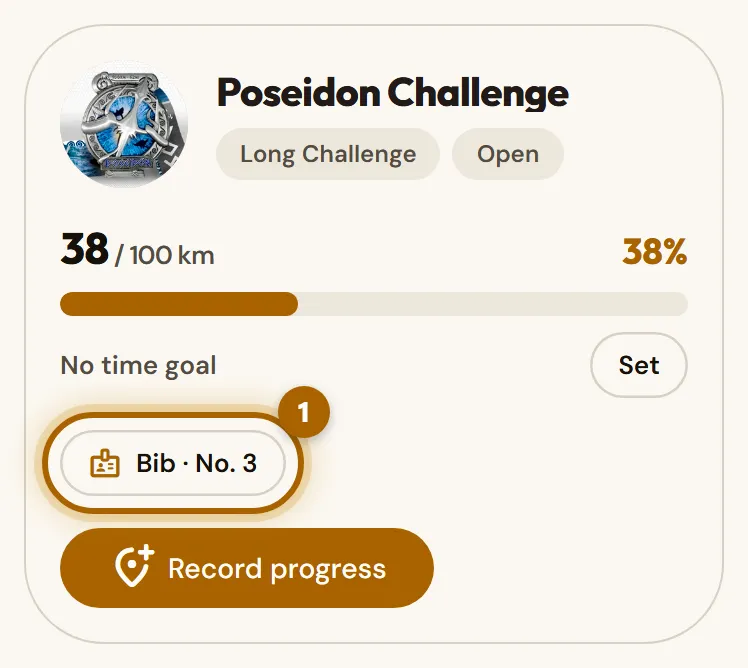
  1. Your bib is yours from the moment you sign up. In your personal area, on the challenge, tap Bib.

    Challenge in progress with the bib link highlighted.
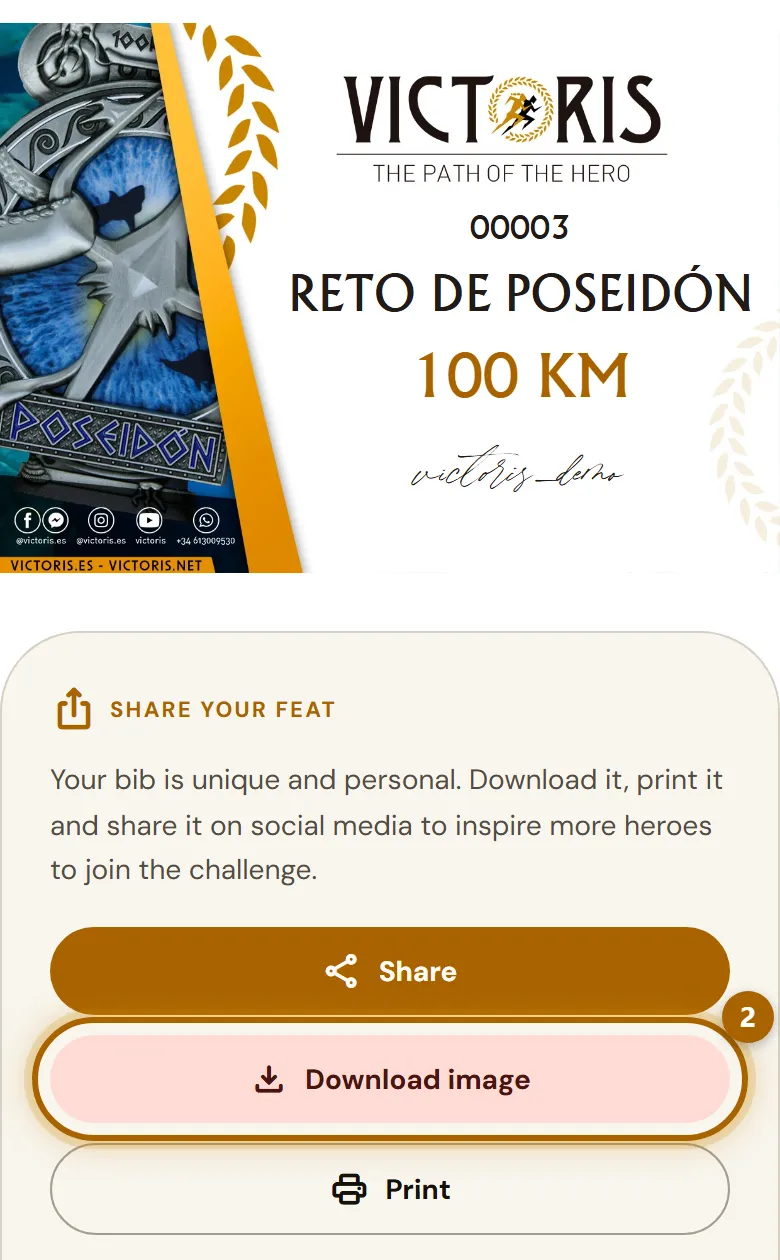
  2. Tap Download image to save it to your gallery, Print to wear it, or Share to send it on WhatsApp or post it on your social media.

    Personal bib with the buttons to download, print and share.
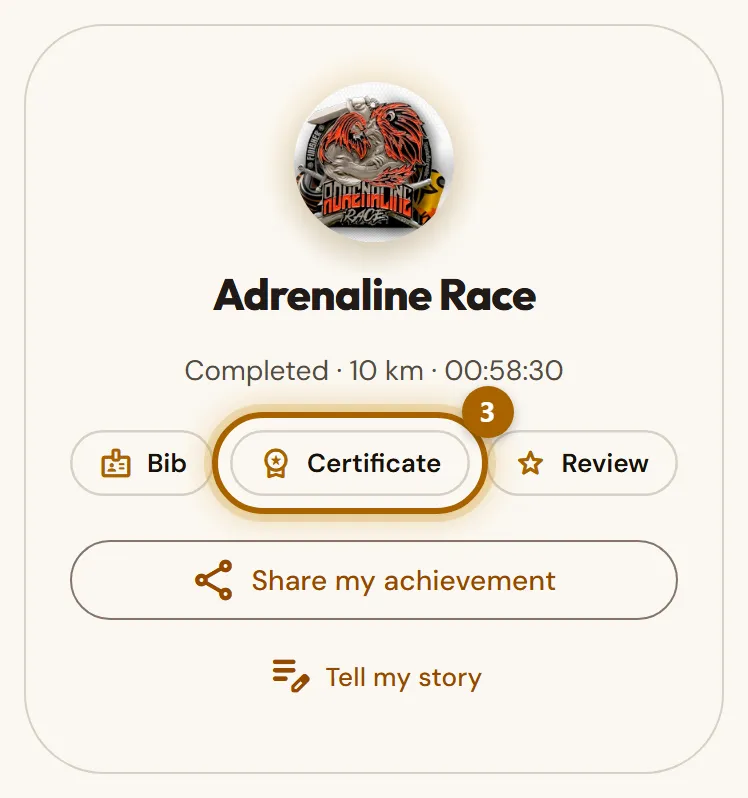
  3. The certificate appears when you finish the challenge. Under Medals earned, tap Certificate.

    Finished challenge under «Medals earned» with the «Certificate» link highlighted.
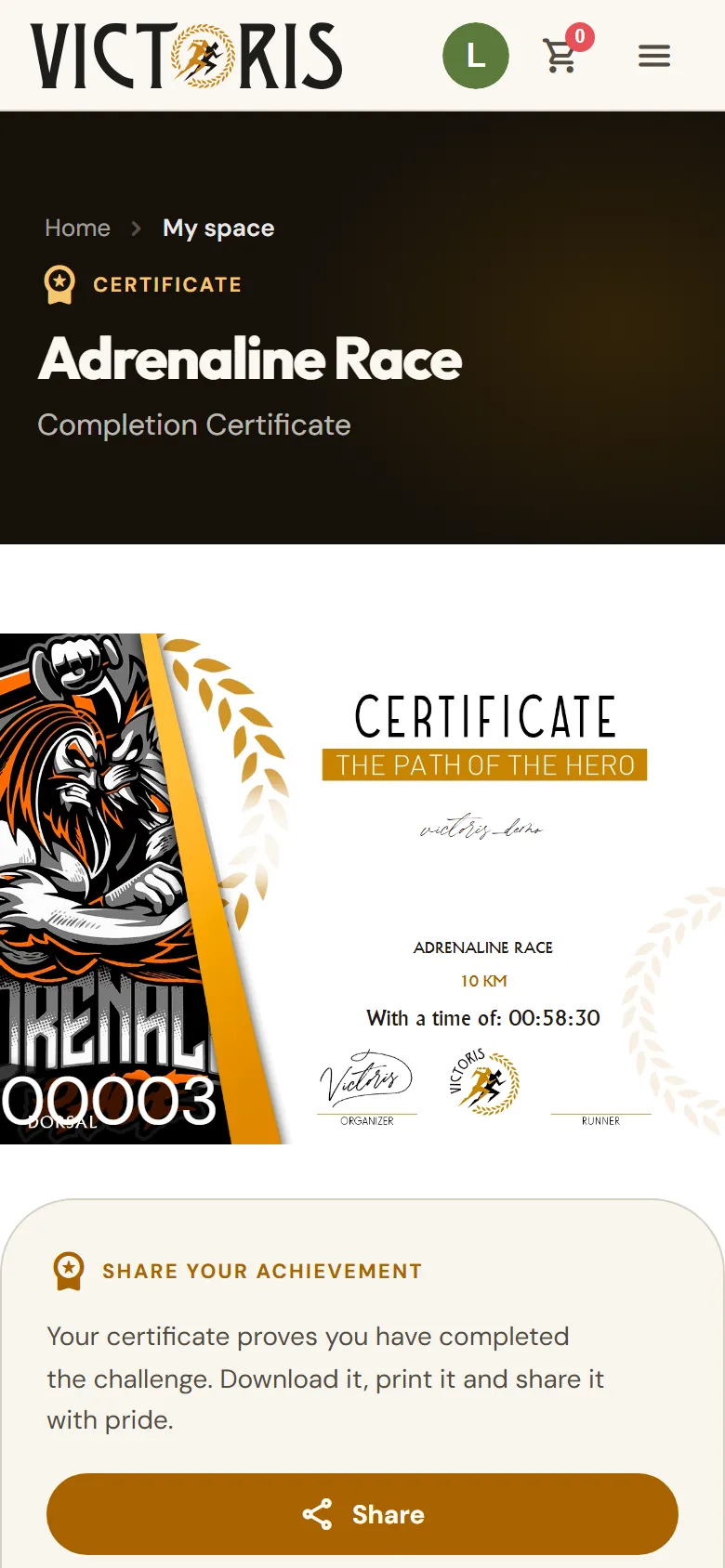
  4. It has the same buttons as the bib. In short challenges it shows your time, and in long ones the dates when you did it.

    Certificate of completion for a challenge.

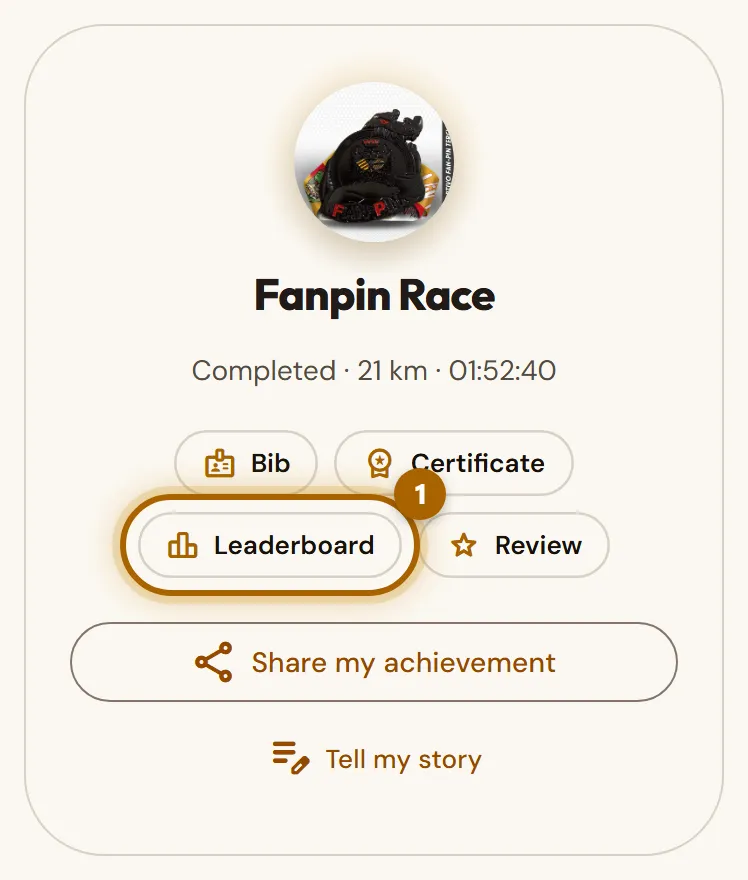
  1. When you finish a competitive challenge, a Leaderboard link appears in your personal area. Tap it.

    Finished competitive challenge with the «Leaderboard» link highlighted.
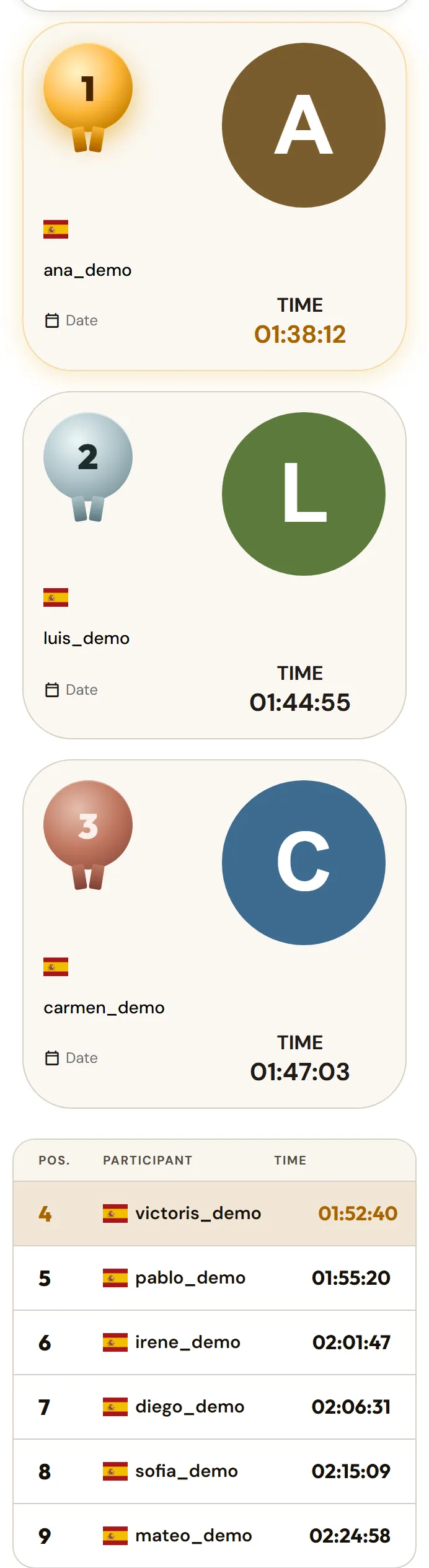
  2. You'll see the podium and the table with the position, the participant, the date and the time. Your row is highlighted; with Find position you jump straight to it.

    Challenge leaderboard with the podium and the table of times.

Tip:On the leaderboard other people see your username, your photo, your country and your times. Never your real name, your email or your address.

Careful:Competitive mode is chosen when you buy the challenge, in the Shop. If you joined in open mode, you won't be on the leaderboard.

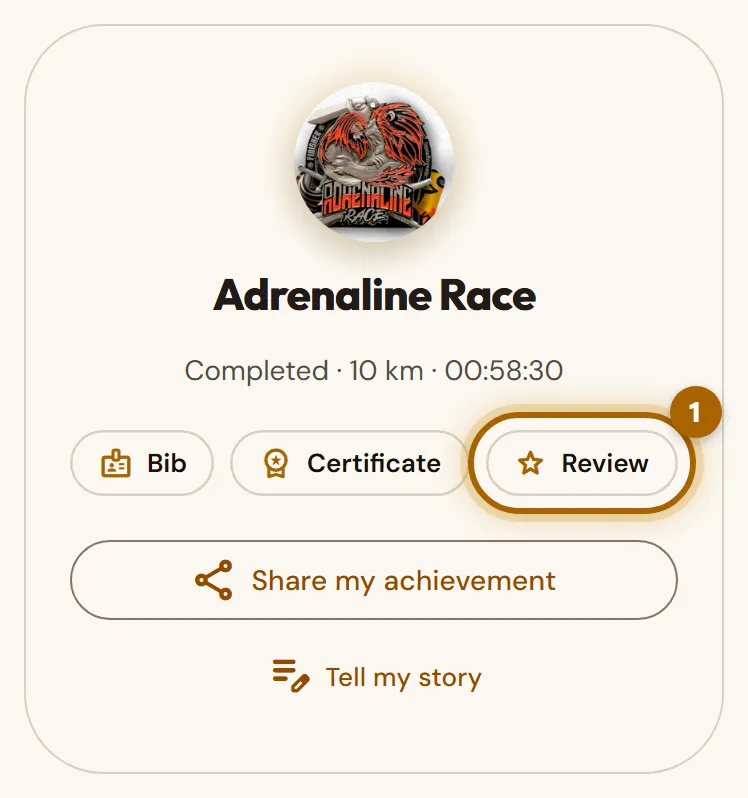
  1. In your personal area, on the finished challenge, tap Review.

    Finished challenge with the «Review» link highlighted.
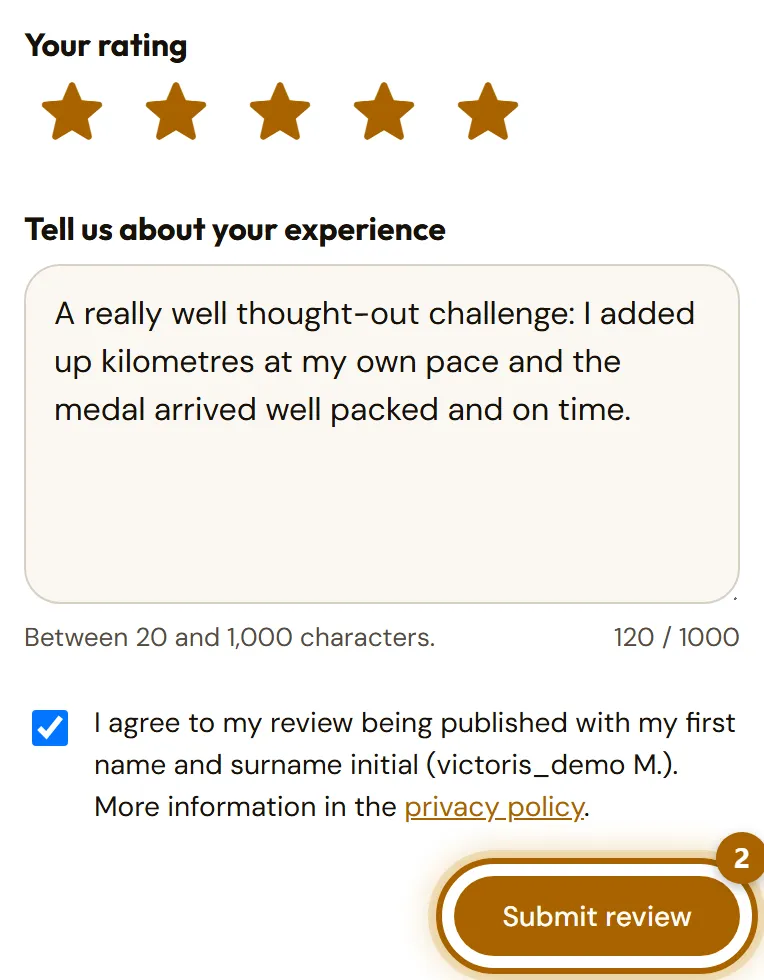
  2. Choose from 1 to 5 stars and tell us about your experience (between 20 and 1,000 characters). Tick the box so we can publish it with your first name and the initial of your surname, and tap Submit review.

    Review form with the stars, the text and the «Submit review» button highlighted.
  3. We check it before publishing it (we only remove insults, personal details or advertising) and it will appear on the challenge page. You can change it or delete it whenever you like.

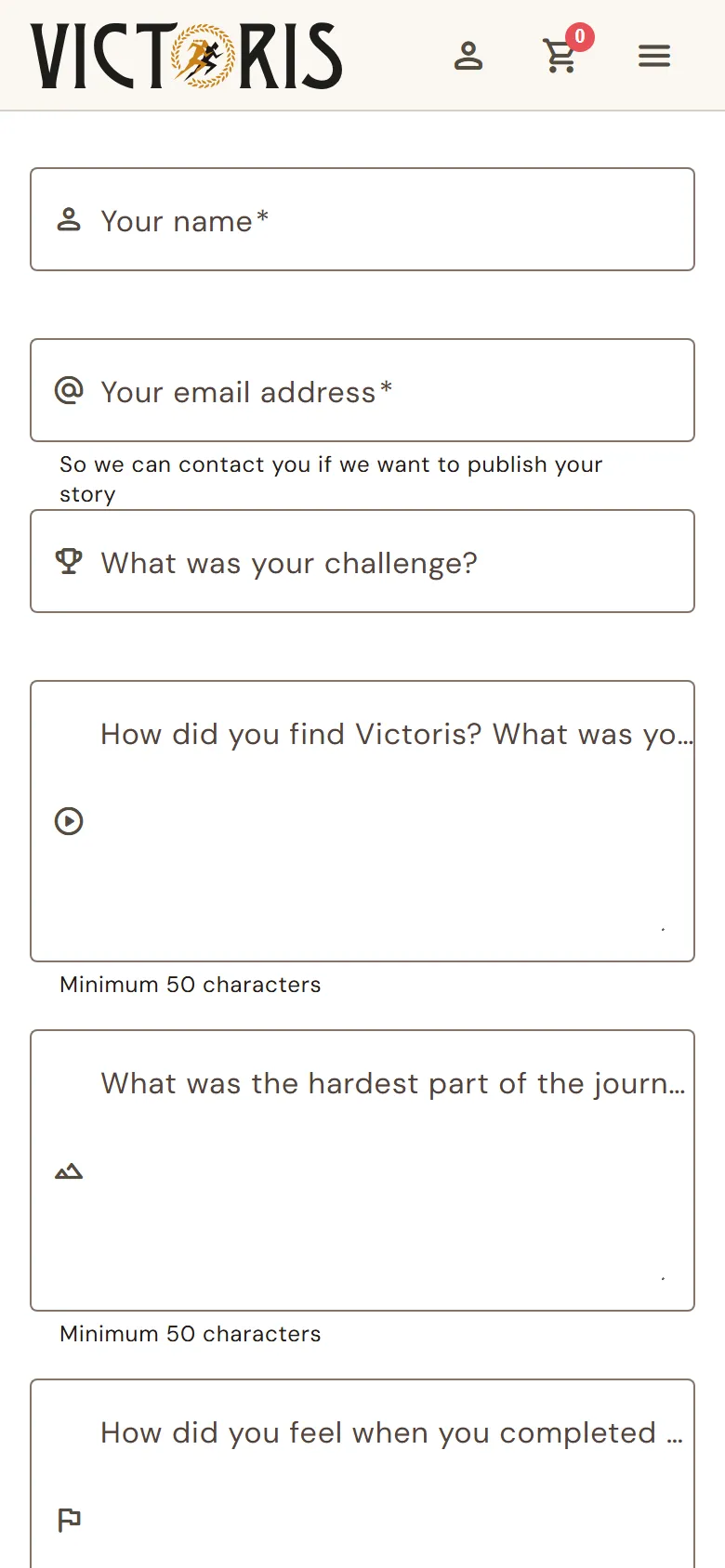
  1. Go to Share your story, from the Tell my story button on a finished challenge or from the link below.

    Share your story
  2. Fill in your details and answer the three questions. Tap Send my story.

    «Share your story» form.

Tip:You don't need to write beautifully: we're interested in what really happened to you, what was hard and how you felt when you got there.

Coins and the Endless Challenge

What you earn for moving, without paying anything.

You're signed up to the Endless Challenge from the moment you create your account, for free. Every activity you log in any challenge counts here too, with nothing more to do.

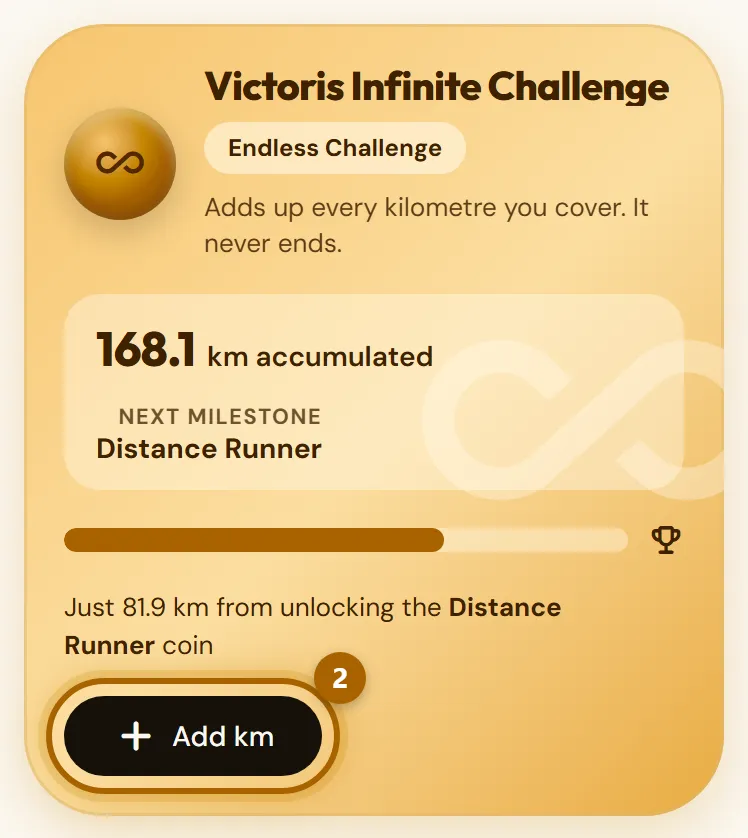
  1. It's the first one under In progress, with your total kilometres and what's left for the next milestone.

    Endless Challenge card with the total kilometres and the «Add km» button highlighted.
  2. If you do an activity you don't want to count towards any challenge, you can log it straight here with Add km.

Tip:The Endless Challenge has no medal, but its kilometre milestones unlock the Silver coins of the collection.

  • Digital stickers: earned for consistency and milestones (your first activity, streaks of days, total kilometres…). They live in your trophy cabinet.
  • Physical coins: Bronze (for inviting friends or for us publishing your story), Silver (for kilometres and feats) and Gold (seasonal, for a limited time).
  • How coins reach you: they travel free with your next paid challenge, one per shipment. You don't have to ask for them.
  • They have no price: they can't be bought, they give no discounts and they can't be given away. They're yours for good.
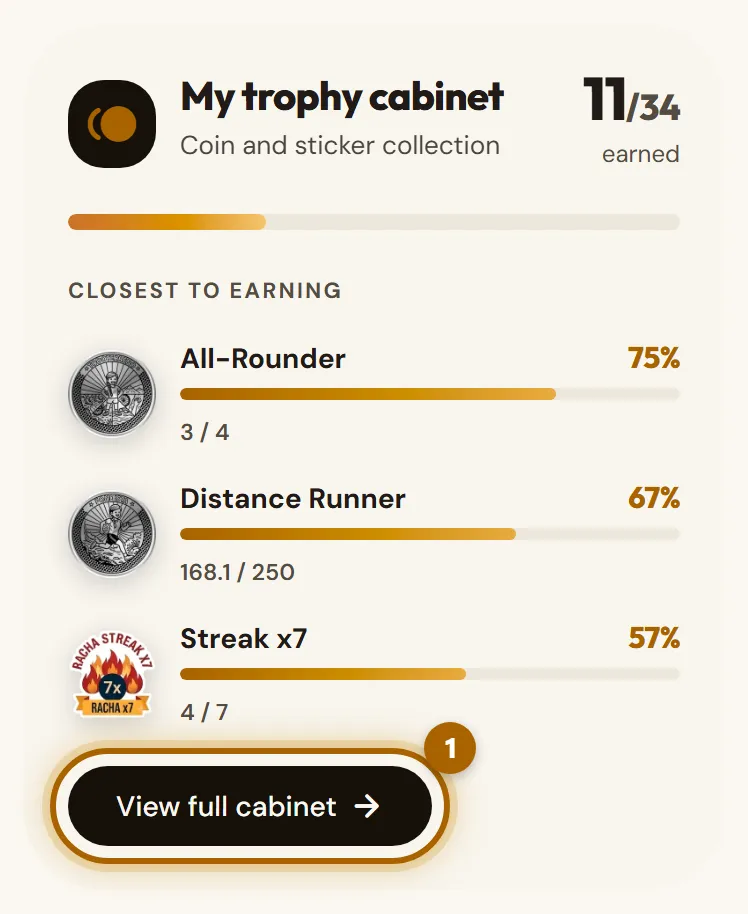
  1. In your personal area, My trophy cabinet shows how many you have and the three you're closest to. Tap View full cabinet.

    «My trophy cabinet» summary with the «View full cabinet» button highlighted.
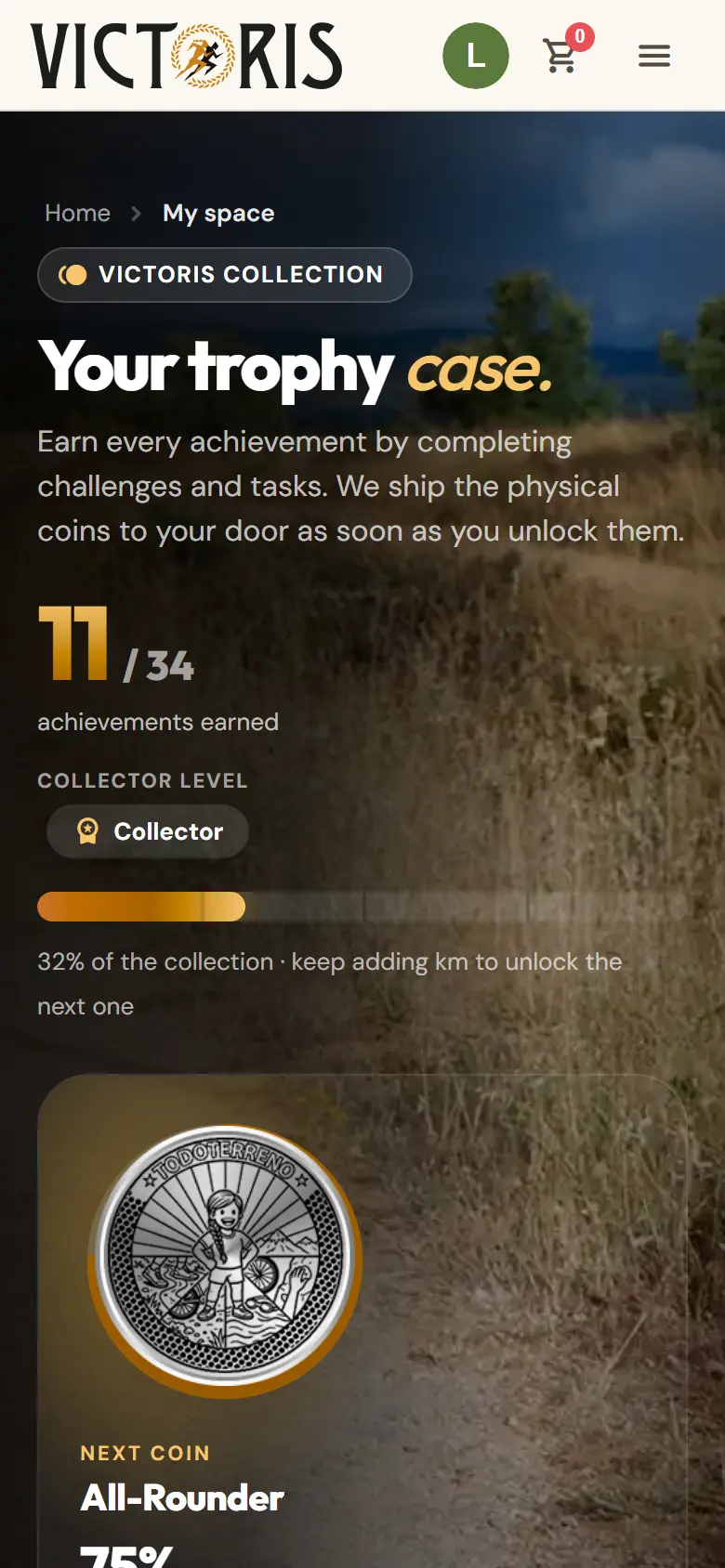
  2. In the cabinet you'll see all the stickers and coins, the ones you already have and what you still need for each one.

    Full cabinet with earned and pending stickers and coins.

Tip:The top prize is the Victoris T-shirt: you get it by collecting the Ambassador coin (bring in 10 friends) and the Chronicler coin (we publish your story).

Invite your friends

Your invitation link and your €5 codes.

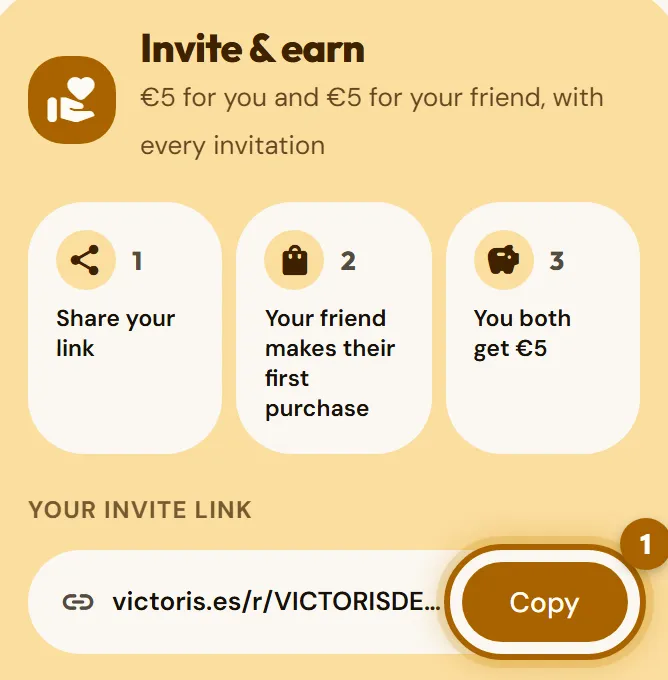
  1. In your personal area, find Invite & earn. Under Your invite link is your personal link. Tap Copy.

    «Invite & earn» card with the invitation link and the «Copy» button highlighted.
  2. Paste it into a WhatsApp message, an email or your social media (press and hold the text field and choose Paste).

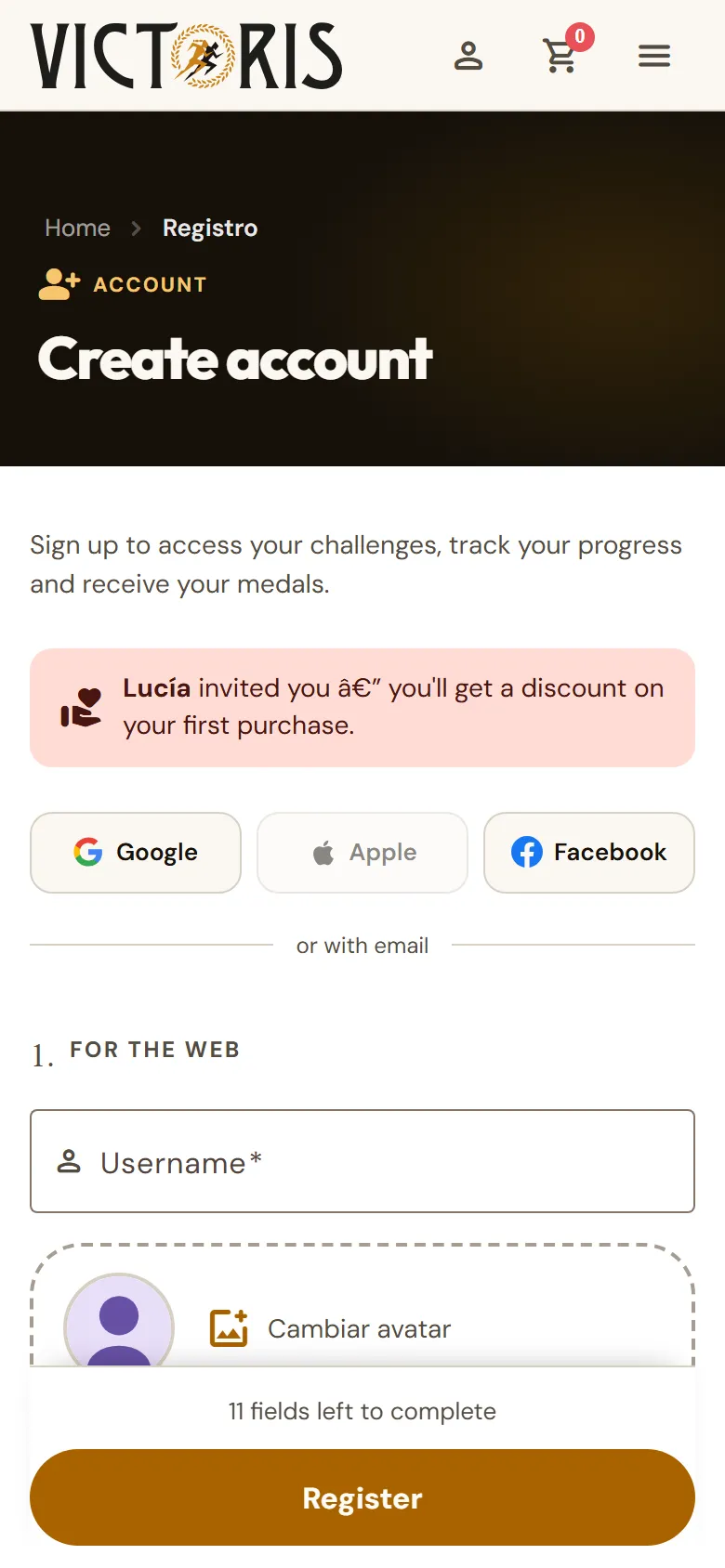
  3. Your friend opens the link and creates their account. They'll see at the top that you invited them, and they'll get their welcome discount.

    Registration opened from an invitation link, with the message showing who invited.
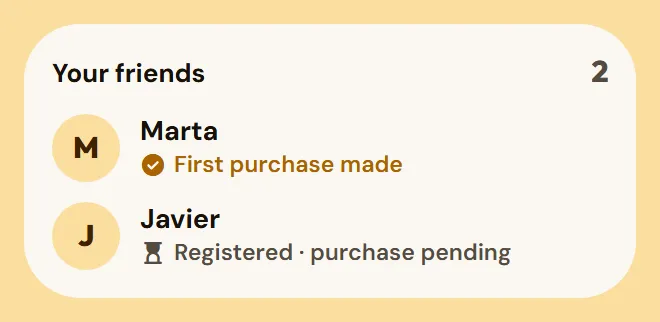
  4. When your friend makes their first purchase, your €5 code arrives. Under Your friends you can see how each one is doing.

    «Your friends» list with the status of each invitation.

Careful:Your friend counts when they complete their first paid purchase, not when they register. And they have to register from your link.

Tip:Inviting is rewarded in the collection too: Bronze coins when you bring in 1, 5 and 10 friends.

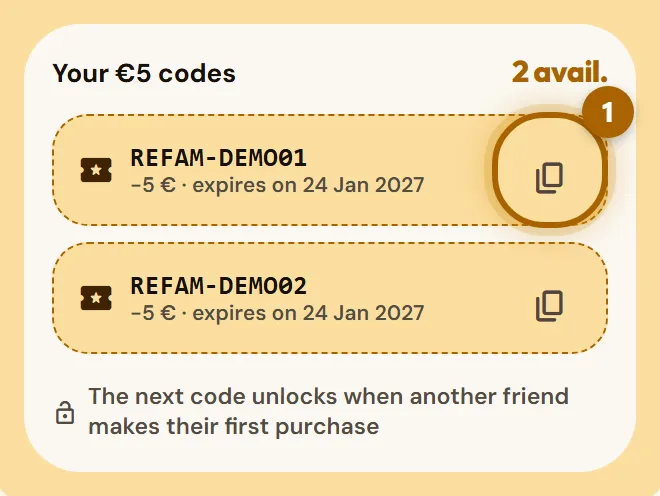
  1. Your codes are under Invite & earn, in Your €5 codes, with their expiry date. Tap the copy button of the one you want to use.

    «Your €5 codes» list with a code and its copy button highlighted.
  2. While logged in, add a challenge to your basket and open it. Paste the code into Discount code and tap Apply. You'll see the discount in the total.

    Basket with a code typed in and the «Apply» button highlighted.

Careful:Codes expire after 90 days and only one can be used per order. They can't be exchanged for money.

Gift a challenge

Give a gift, follow it and manage your gifts.

  1. Tap Gift in the menu (the gift icon). Choose the challenge you want to give and how many (up to 50).

    First step of «Gift a challenge»: choosing the challenge.
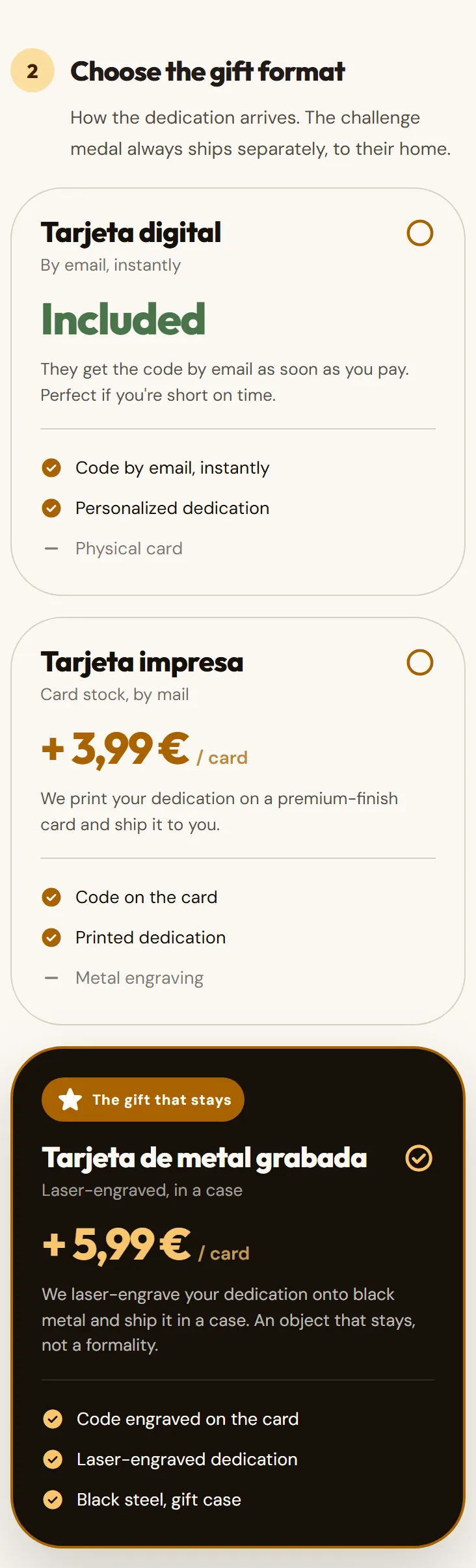
  2. Choose how it arrives: digital, by email straight away and included in the price; printed card (+€3.99); or metal card, laser-engraved and with a case (+€5.99).

    Choosing the gift format: digital, printed card or metal card.
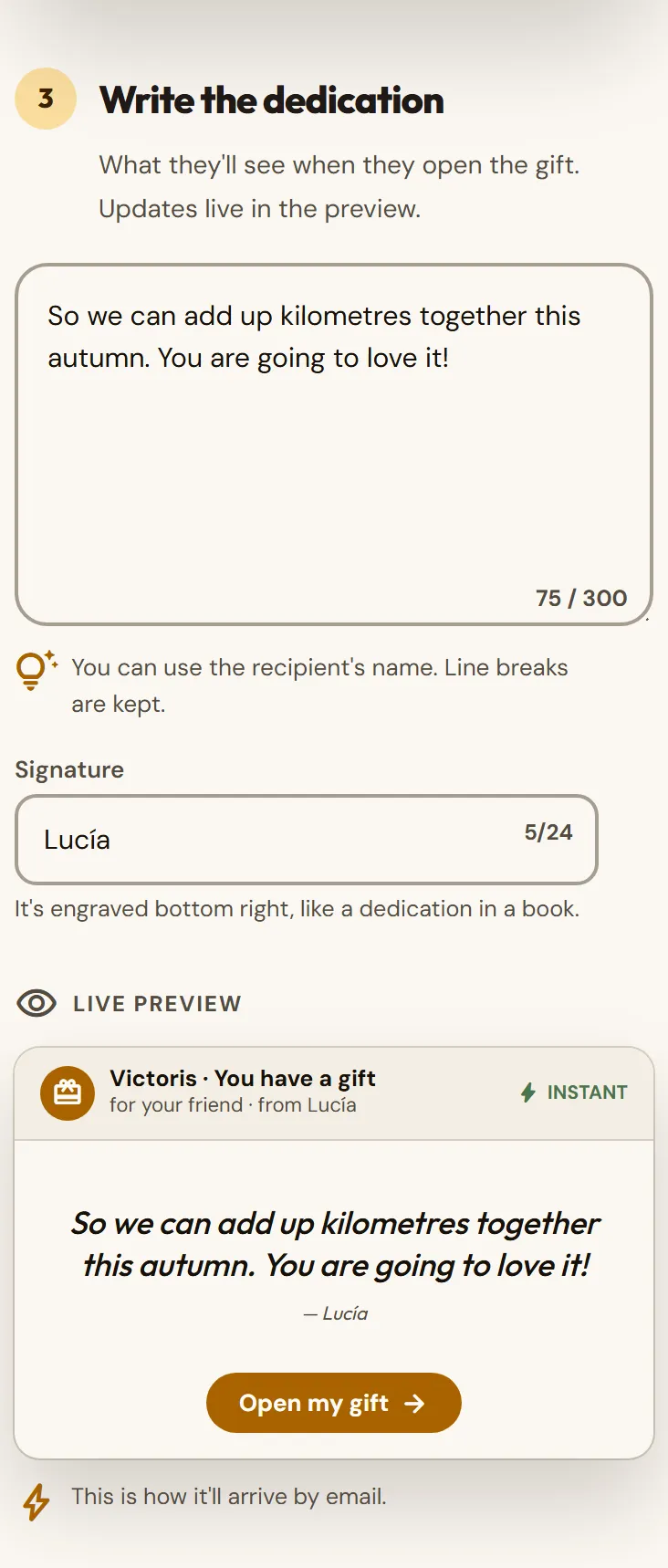
  3. Write the message and your signature. On the right (or below, on a phone) you'll see how it looks.

    Message written with the card preview.
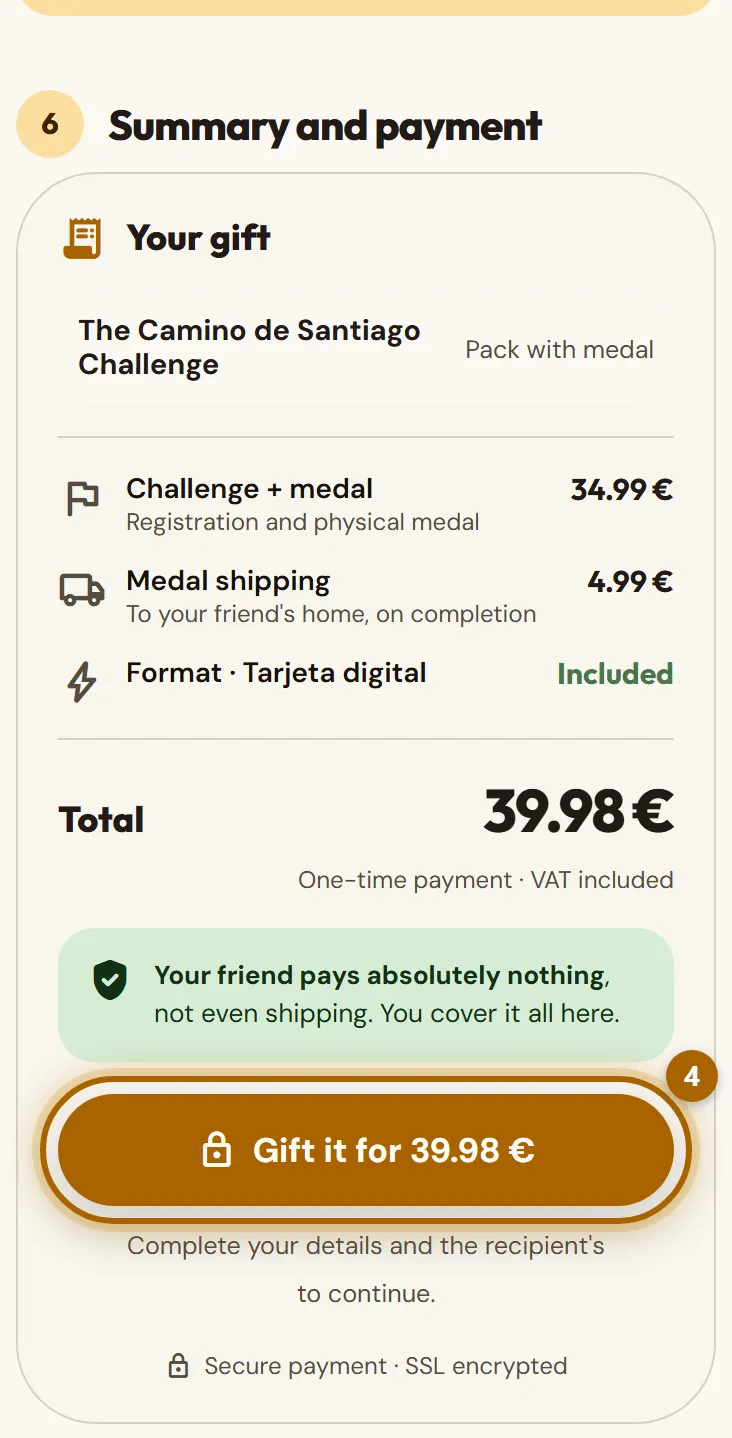
  4. Say who it's for and how it reaches them: by email, in person or sent to their home (Spain only). Fill in your details and tap the pay button.

    Gift summary with the pay button highlighted.
  5. After you pay, you get an email with a link to follow and manage your gift.

Tip:The gift always includes the medal. And since it doesn't expire, your friend can start whenever they like.

Careful:A gift goes in a separate order: if you have challenges in your basket, finish that purchase first or empty the basket.

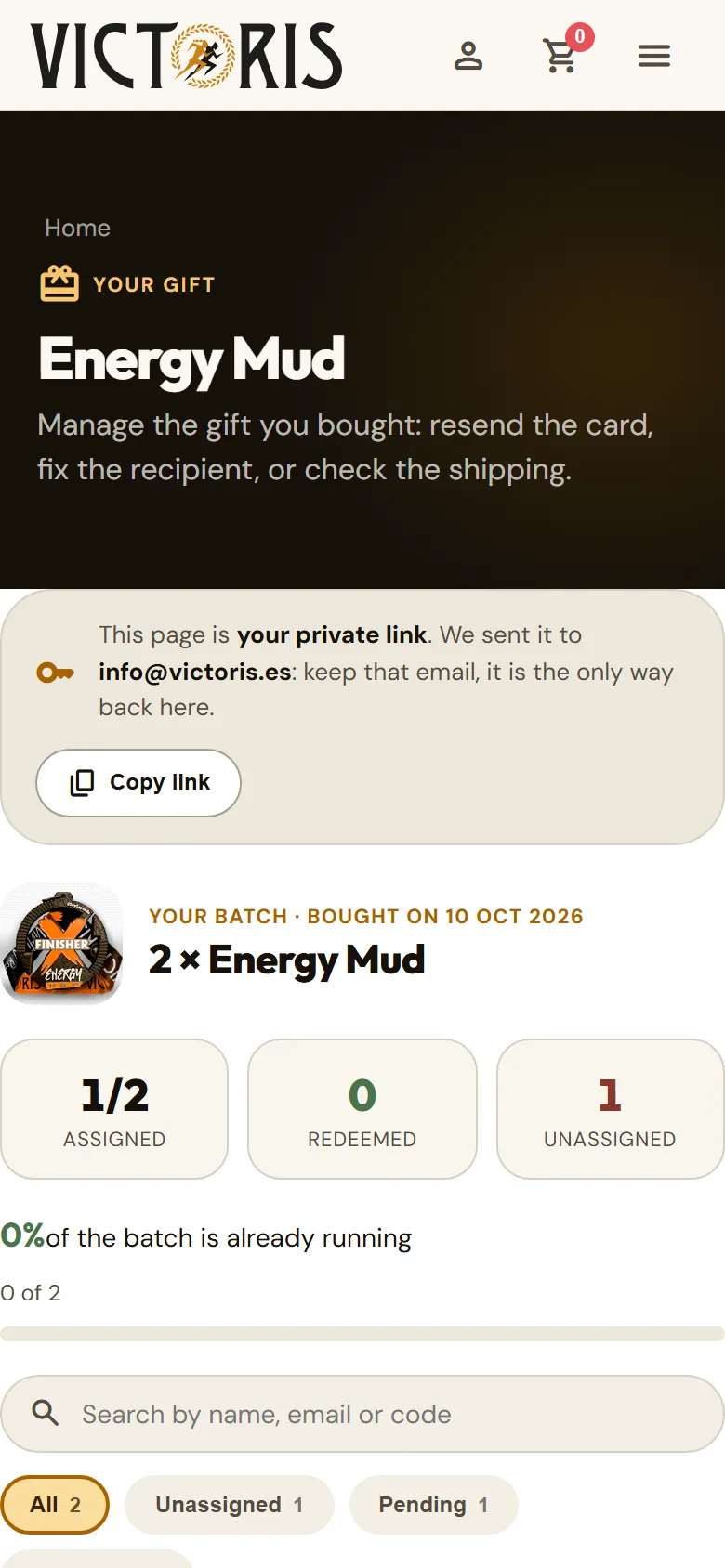
  1. Open the link in the email you received when you bought it. That link is the key to your gift: don't share it.

    Gift management page with its options.
  2. From there you can mark I have given it to them, Resend the card or Fix name or email (as long as it hasn't been redeemed). If you gave several, you can assign each code to a person or download the list.

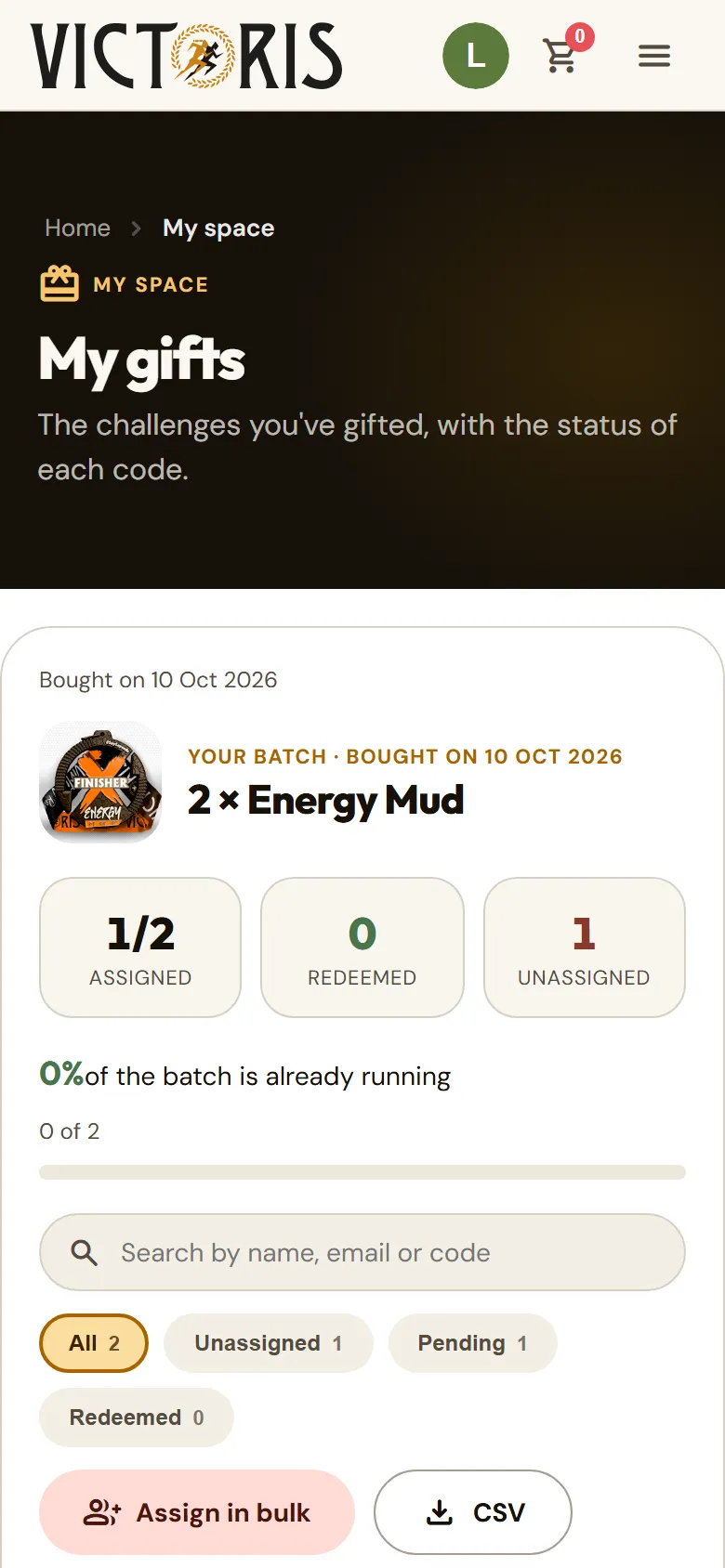
  3. If you have a Victoris account, you also see them in the menu, under My gifts.

    «My gifts» page with the gifts and their status.

Groups and companies

Challenges with your company, your club or your association.

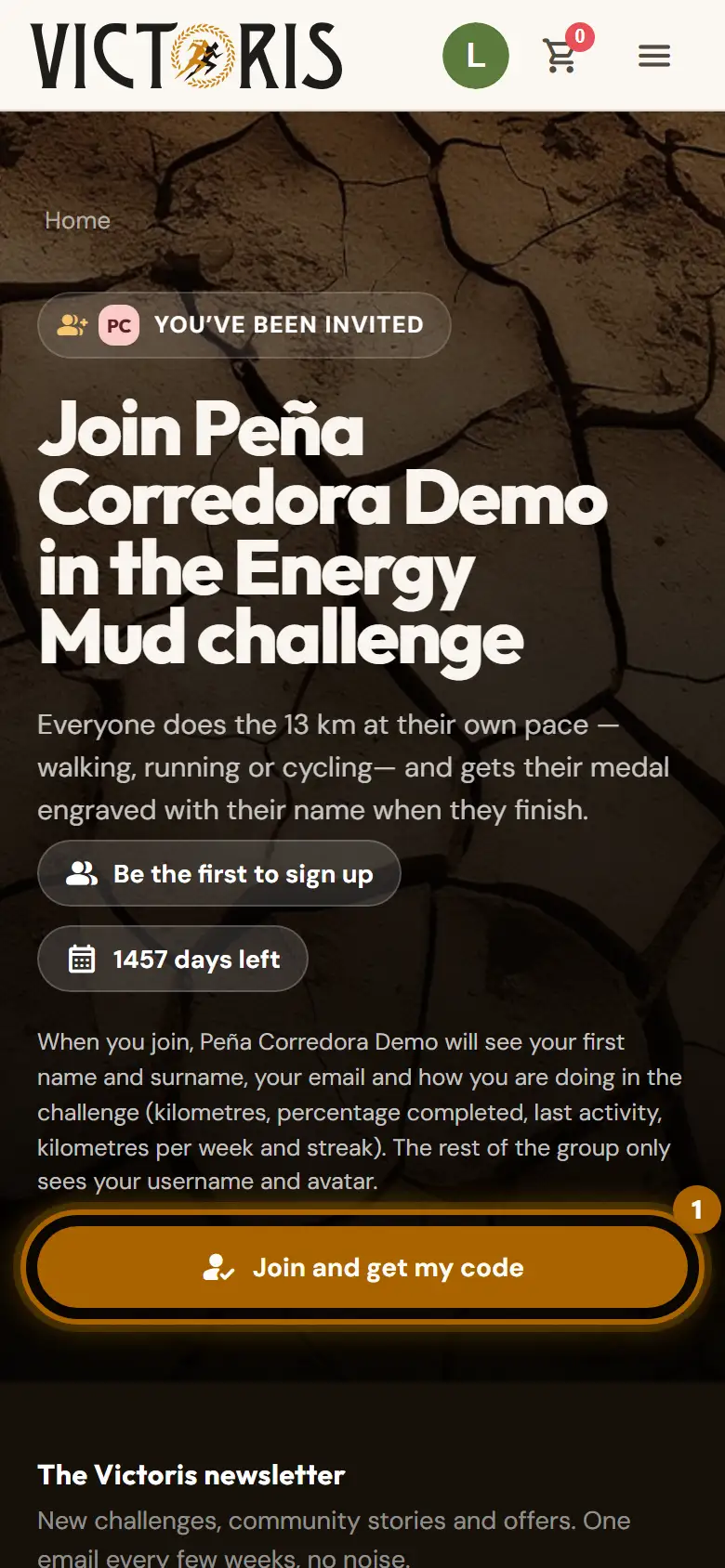
  1. Open the invitation link you were sent. You'll see the group's name and which of your details the organiser will see.

    A group's «Join» page with the join button highlighted.
  2. Log in or create your account, and tap Join and get my code. The group's challenge will appear in your personal area.

Careful:In a group, the organiser sees your first and last name, your email and how you're doing in the challenge. We tell you this before you join.

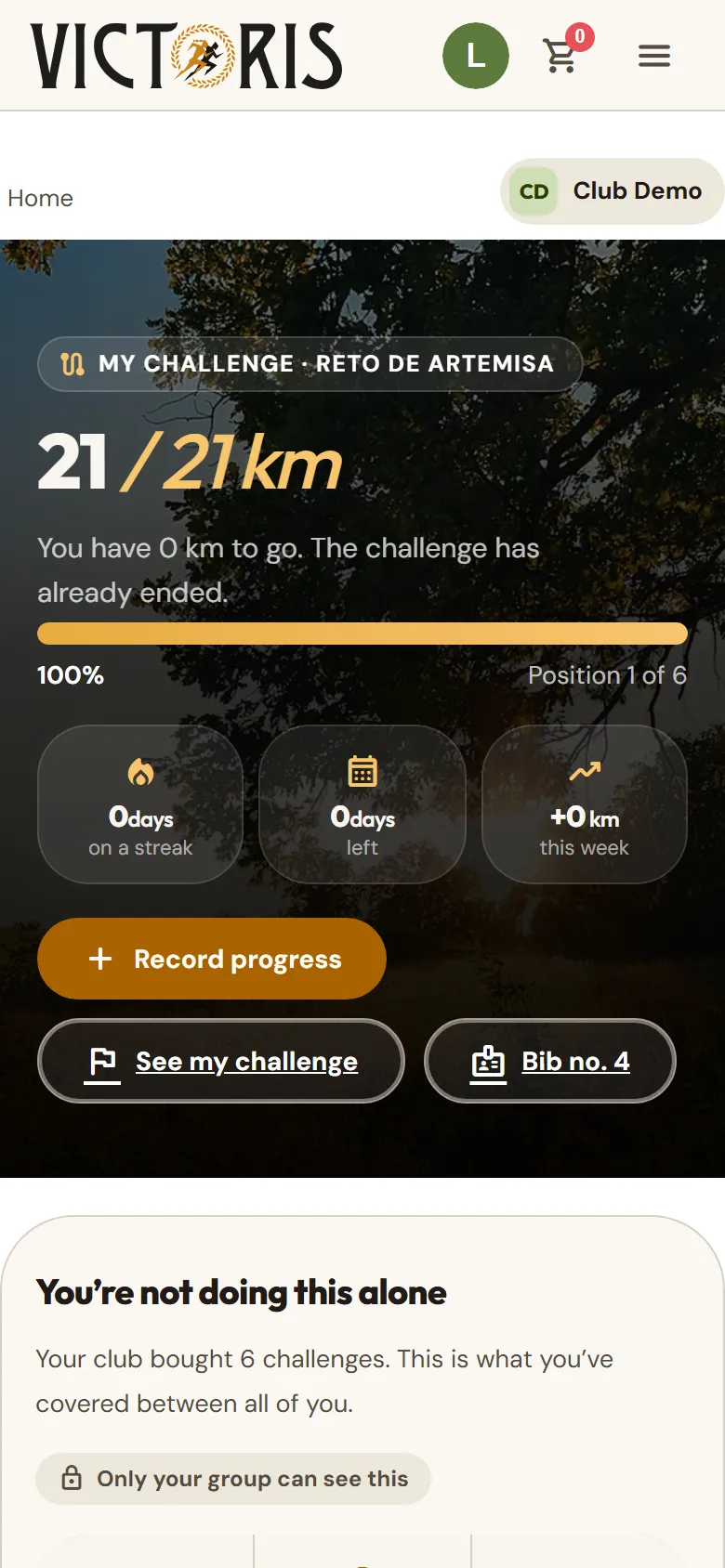
  1. In your personal area, under My team, tap your group. You'll see your position, the kilometres you've done all together and how many have already reached the finish.

    Team page with the user's position and the group's totals.
  2. Under Where you stand right now you have the two people just ahead of and behind you. And when someone reaches the finish line, they appear under They’ve just crossed the finish line: with one tap you send them applause.

  3. From here you can also Record progress and open your bib.

  1. Open the panel link you received by email when you bought. You don't need an account: that link is your key, so don't share it.

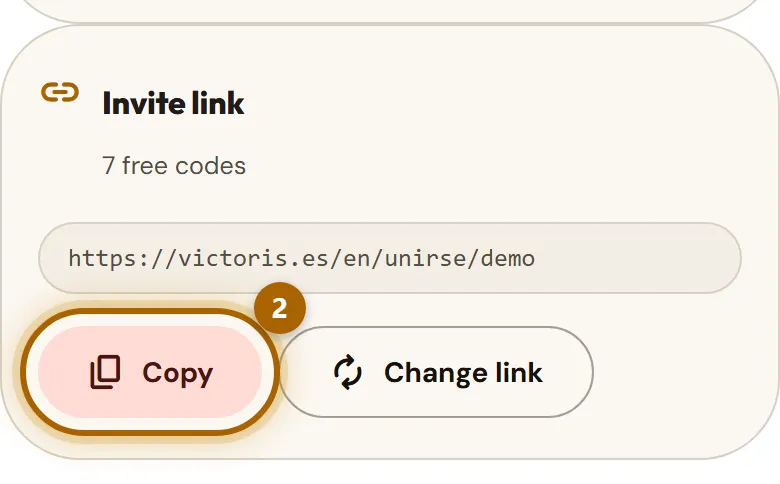
  2. Copy the invitation link and send it to your people. From the panel you can copy it, share it or change it if it has spread too far.

    Organiser panel with the invitation link.
  3. Follow how each participant is doing and the group total. If you run short of places, ask for more with Buy more licenses.

Your account and help

Newsletter, privacy, contact and glossary.

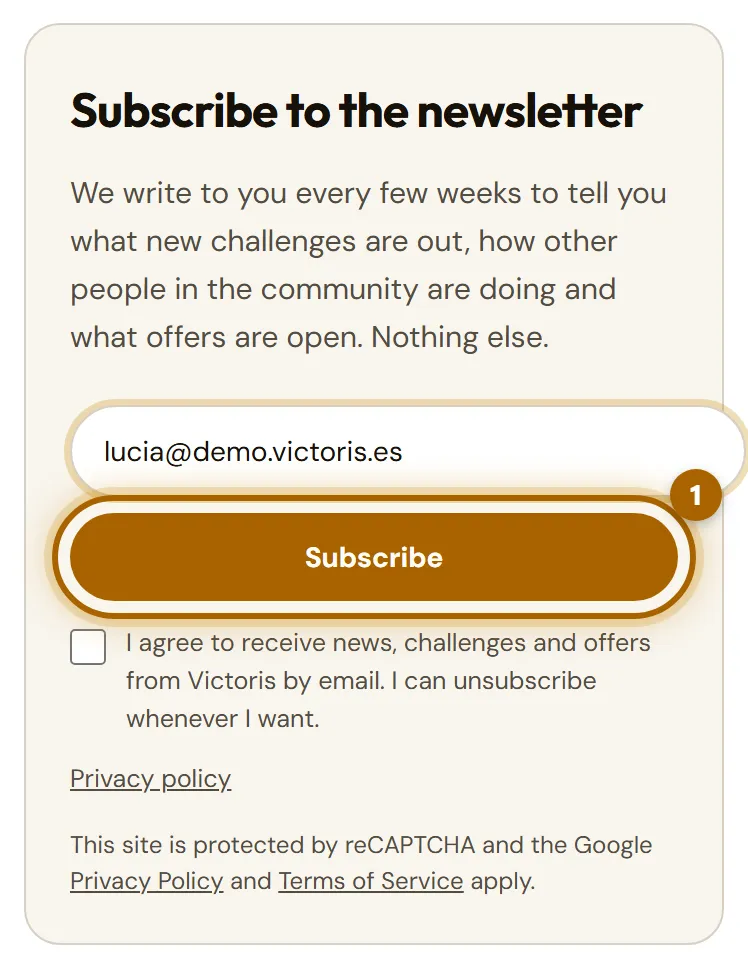
  1. Type your email in the newsletter form (at the bottom of any page or on the Newsletter page) and tap Subscribe.

    Newsletter form with the «Subscribe» button highlighted.
  2. You'll get an email asking you to confirm. We won't sign you up until you tap its link.

  3. To unsubscribe, tap the unsubscribe link at the bottom of every newsletter. It's instant.

You might also find this useful
  • What other people see: on the leaderboards, your username, your photo, your country and your times. Nothing else.
  • Your routes: the GPX is read in your browser. Victoris only receives the distance, the time and the elevation.
  • Your data is not sold or passed on to anyone for commercial purposes.
  • Cookies: you can decline analytics and advertising cookies, and the website works just the same.
  1. To change your details, go to Profile.

    How to change your details
  2. To delete your account, write to us at info@victoris.es from the email you registered with. We process the request and confirm when it's done.

Challenge
A distance you complete at your own pace, with its own medal.
Long challenge and short challenge
A long one is completed bit by bit, adding up activities. A short one can be done in one go.
Open and competitive mode
In open mode you log by hand or with a GPX and there's no leaderboard. In competitive mode only a GPX counts and you join the leaderboard.
Pack
What your registration includes: Basic (no medal), Medal (with medal) or Super (medal and medal display).
Bib
Your participant number. You can download it, print it and share it.
Certificate
The diploma that shows you've finished the challenge.
GPX
The file with the route of your activity that your watch or sports app saves.
Record progress
The button for logging an activity in a challenge, by hand or with a GPX.
Endless Challenge
The free challenge that adds up all your kilometres and never ends.
Sticker
A digital achievement that stays in your trophy cabinet.
Coin
A physical achievement that we send you with your next paid challenge. You can't buy it: you earn it.
Honeycomb
The wooden medal display for hanging your medals. It comes with the Super pack.

You might also find this useful
Can't find what you're looking for?